





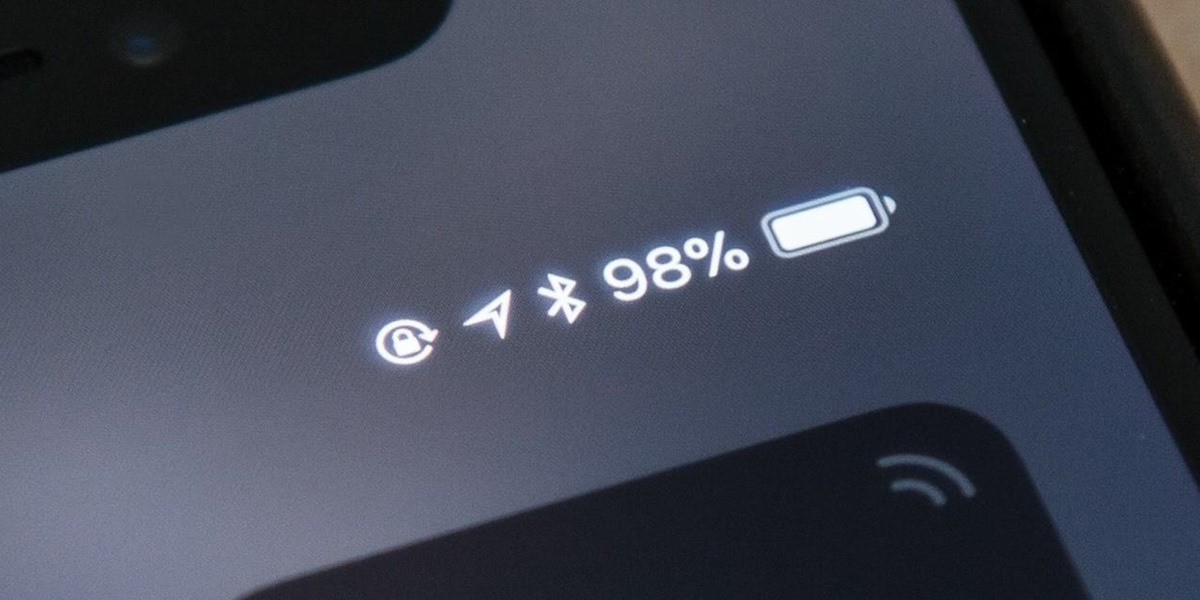




4 ways to know the battery percentage on iPhone 13
Many expected that, with the slightly smaller notch in the iPhone 13 line, Apple would put the percentage of battery in the status bar. However, that didn't happen!
However, there are some easy ways to access this information on the iPhone permanently.
Follow our tips:
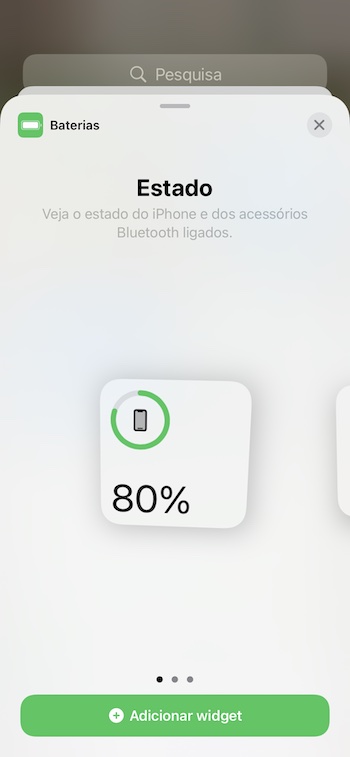
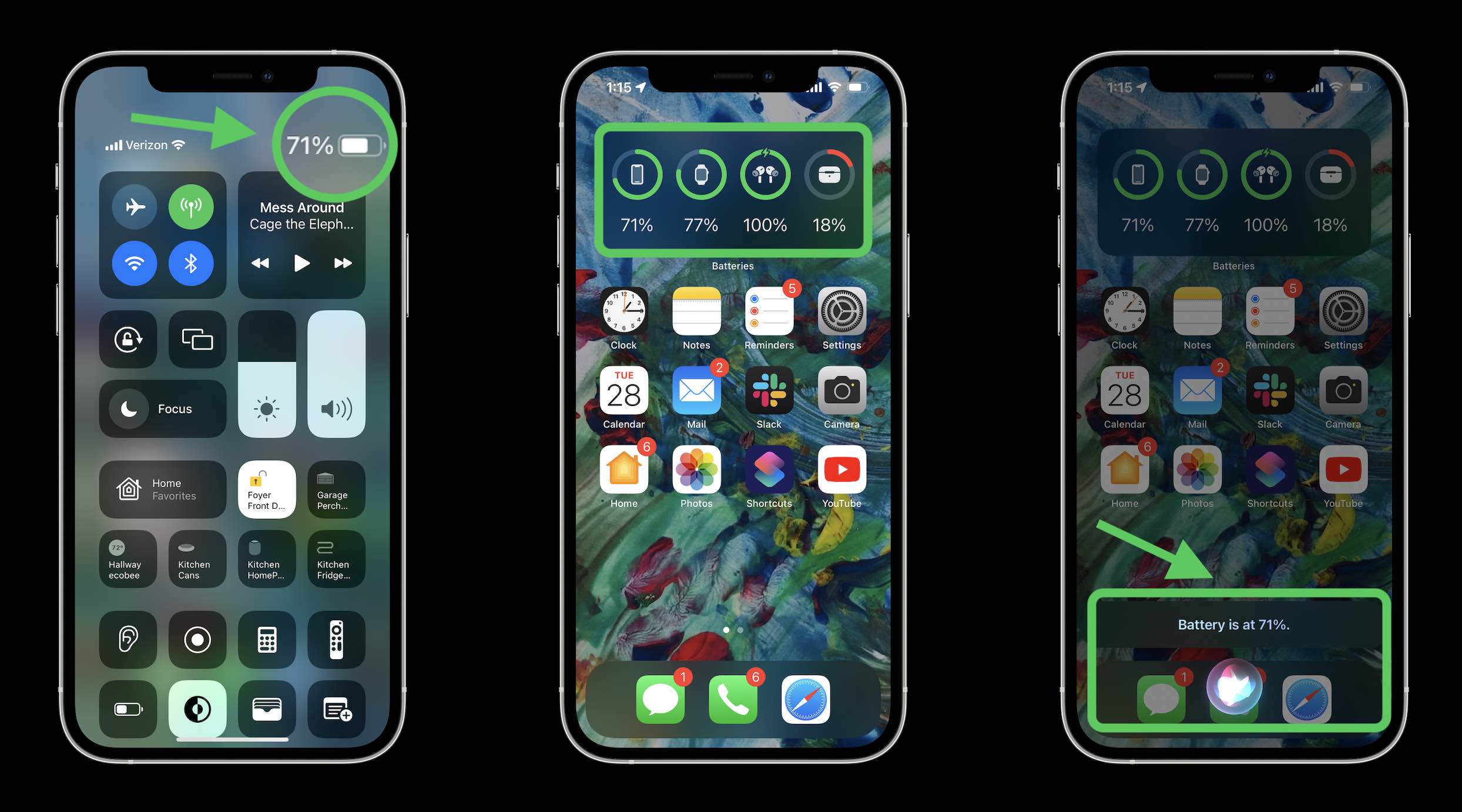
- Press and hold on an available area of the home screen and tap the + in the upper left corner
- Swipe down and tap Batteries
- Choose the battery status widget (you can choose medium or large format)
And you already know that battery problems may influence the performance of your iPhone. If you notice that your equipment is slower or unresponsive; does not turn off; unexpectedly quits or restarts; the applications or system are inexplicably unresponsive; downloads too fast; or you have signs of a swollen battery... most likely you need to replace the battery. When we replace the iPhone battery, you can count on a durability equal to the original when you purchased the equipment and all batteries are new with 0 cycles. iServices repairs the iPhone battery on time and even with a free and no-obligation diagnosis! Visit one of the our stores.
Recommended Products
View all
 36 Months
€1,539.18
36 Months

 36 Months

 36 Months

€39.95

Other Articles
See more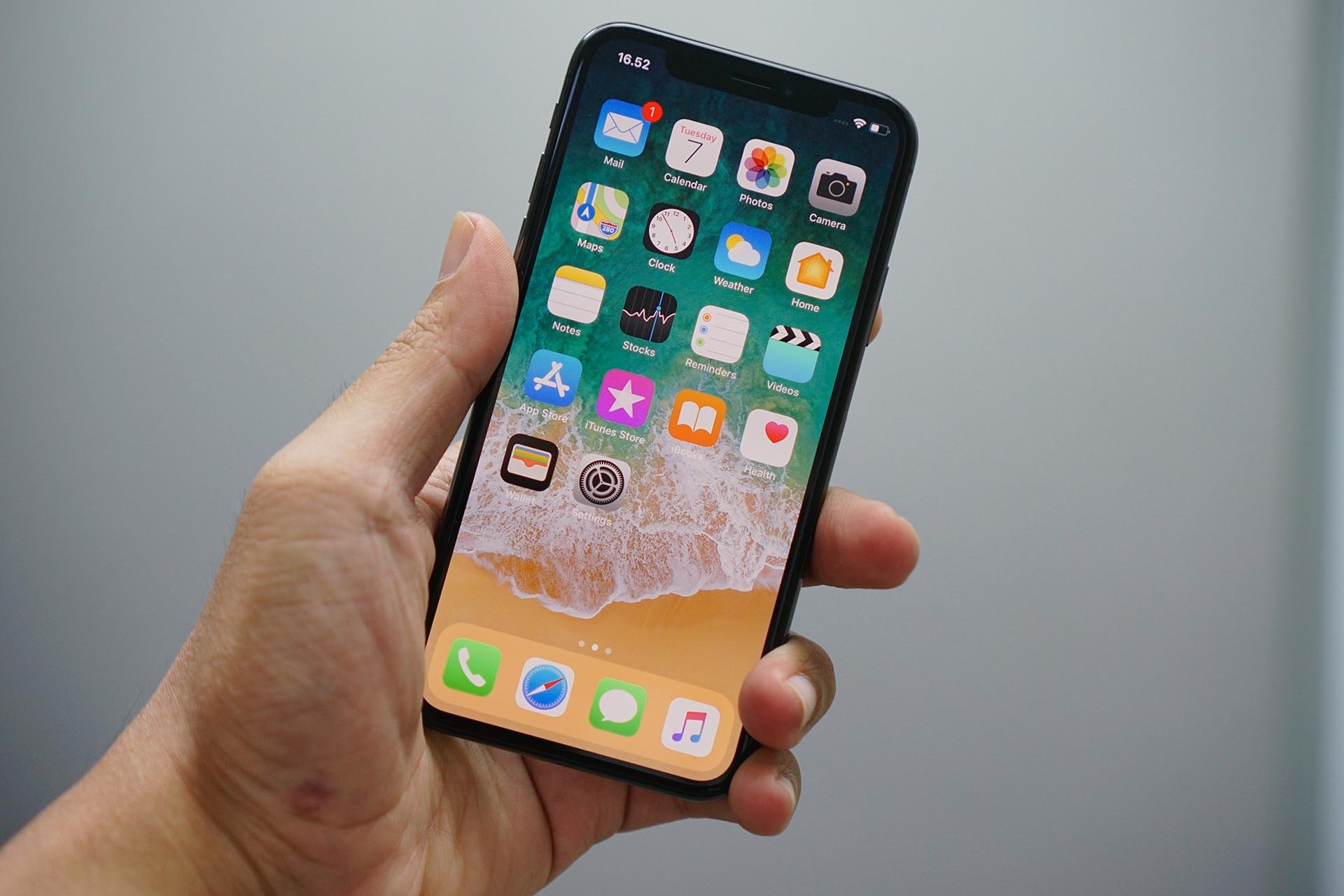
Already know how to record iPhone or iPad screen?
Did you know that you can record a video from your iPhone screen? iServices explains how you can get all your favorite videos from your iPhone screen. Know all the steps and save your favorite videos in the iPhone gallery.

It's official: The iPhone 17e and iPad Air are coming
Apple has just announced the launch of the iPhone 17e and a new tablet - the iPad Air. Come and discover the latest Apple news with iServices.

iPad Air vs iPad Pro: which is better?
Conhecer as diferenças entre o iPad Pro e o iPad Air e compra um iPad Recondicionado na iServices com 3 anos de garantia ao melhor preço do mercado.