No store found
Try searching for a different store or check your spelling

Favourite Store
Select your favourite store
No store found
Try searching for a different store or check your spelling
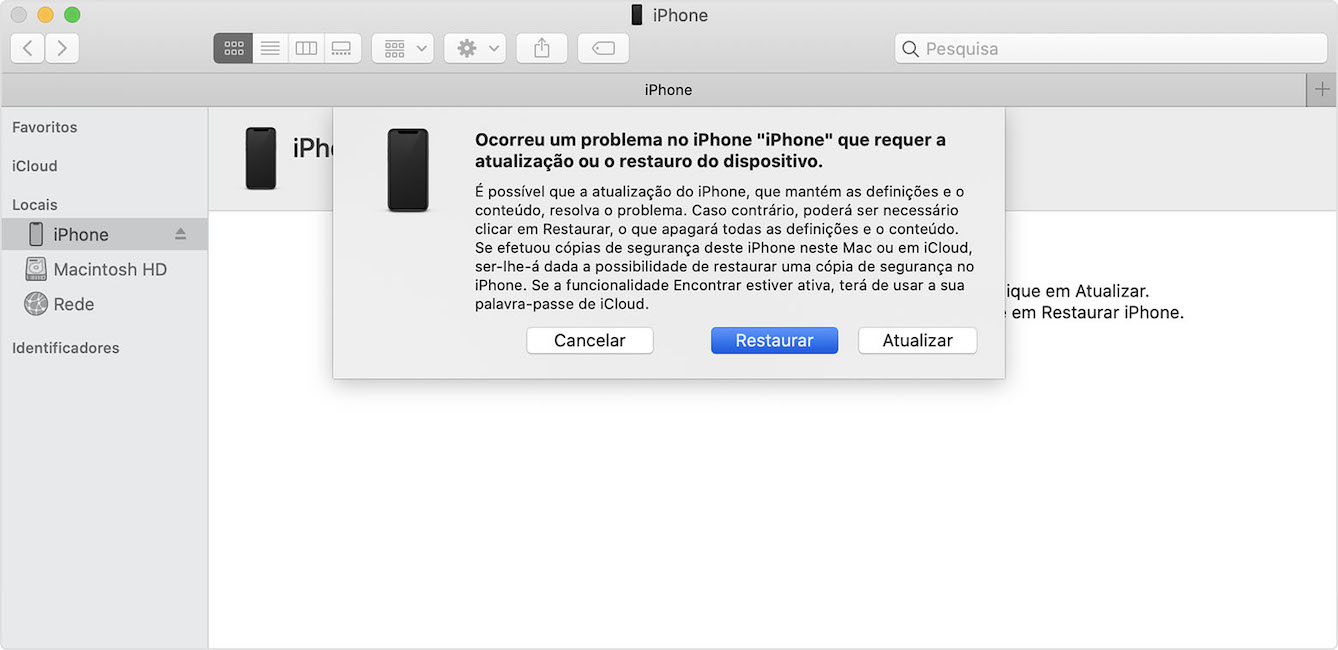
Forgot your smartphone code? Learn how to unlock iPhone, put it in recovery mode and set it up again, no need to go to the carrier. We only warn you that all the following steps will completely erase your iPhone data. There is no way to remove iPhone passcode without losing data. Afterwards, you can always restore an automatic iCloud or iTunes backup, if one exists.
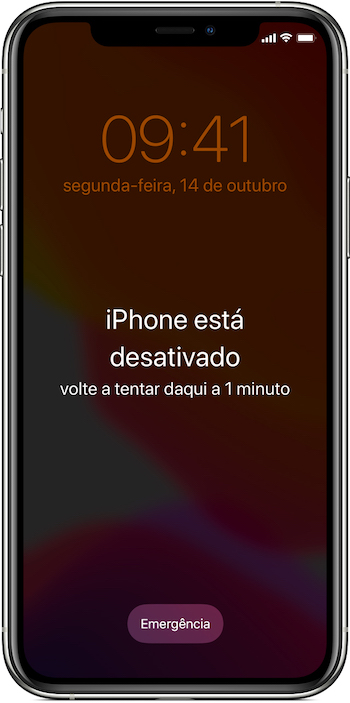
If you have entered the wrong passcode on the iPhone's lock screen too many times, a message will appear indicating that the iPhone is disabled. And if you still don't remember the code when you try again, you'll have to use a computer to put your iPhone in recovery mode afterward.
How to recover iPhone
This process of reactivating iPhone requires a Mac or PC computer. Se estiver a utilizar um PC, certifique-se de que tem o Windows 8 ou posterior e de que o iTunes is installed. You also need the cable that came with your iPhone or another compatible cable to connect your iPhone to your computer. If you don't have a computer available and can't borrow one, go to an iServices store for help. Just remember that this process of how to unlock iPhone erases all data and settings, including the passcode, giving you access to set up iPhone again. After erasing iPhone, you can restore data and settings from backup. If you haven't backed up your iPhone, you can set it up as a new device and then download the data you have in iCloud.
Recovery Mode Step-by-Step
|
|
|
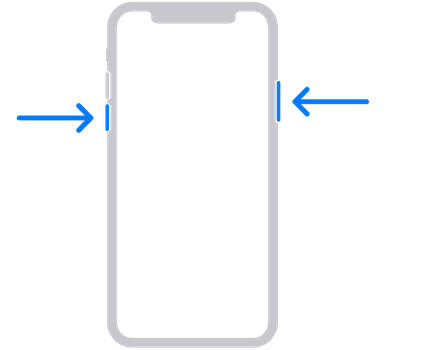
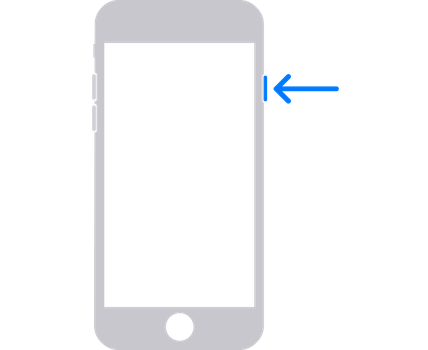
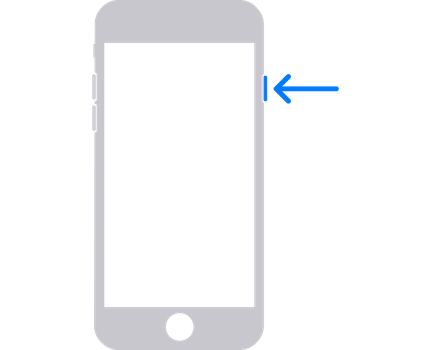
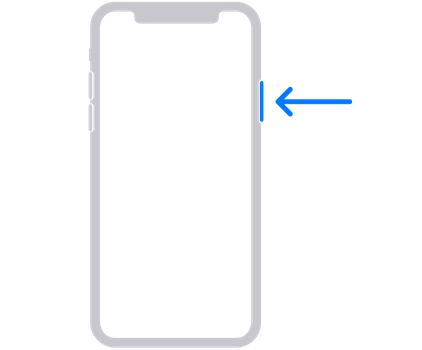
On iPhone X or later, iPhone SE (2nd generation), iPhone 8 and iPhone 8 Plus, you must press and hold the side button and the volume down button for a few seconds until the Power off slider appears. | On iPhone 7 and iPhone 7 Plus you have to press and hold the side button for a few seconds until the Power off slider appears. | On iPhone SE (1st generation) and iPhone 6s and earlier, press and hold the side (or top) button for a few seconds until the Power off slider appears. |
Then, on either model, just drag the slider to turn off the iPhone and then wait a minute to make sure it turns off completely.
The most important thing first is to locate the button on the iPhone that allows you to activate Recovery Mode. This button changes depending on the iPhone model.
|
|
|
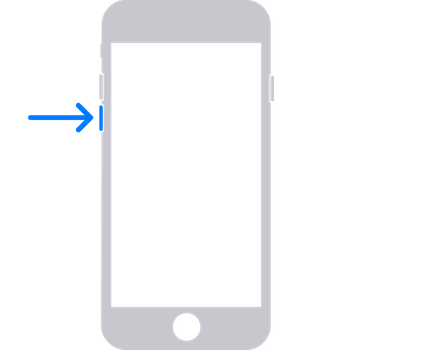
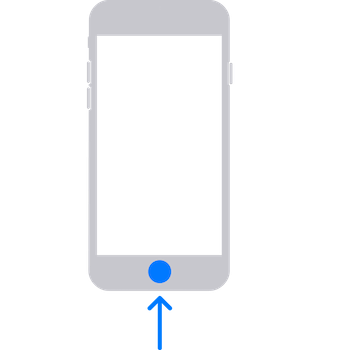
On iPhone X or later, iPhone SE (2nd generation), iPhone 8 and iPhone 8 Plus, recovery mode is activated via the side button. | iPhone 7 and iPhone 7 Plus use the volume down button. | iPhone SE (1st generation) and iPhone 6s and earlier use the Home button |
Press and hold the correct iPhone button while immediately connecting iPhone to computer. Do not release the button. Keep pressing the button until you see the recovery mode screen on iPhone, then release it. If you see the passcode screen, you must turn your iPhone off again and start over. If you are unable to put your iPhone into recovery mode, contact iServices.
STEP #3
How to restore iPhone
Locate iPhone in Finder or iTunes on the computer it is connected to. Select Restore when the Restore or Update options appear. The computer downloads the software for the iPhone and the restore process. Wait until the process is complete. Disconnect iPhone from computer, then set up and use iPhone.
Discover how to fix it when mobile data is not working on the iPhone, with effective solutions for models from the iPhone X to the iPhone 17 Pro Max.

How were smartphone sales in 2018? We looked for all the data about the market over the last year and discovered several surprises, come and find out!
iPhone buttons stiff or stuck? Discover effective causes and solutions for models from iPhone X to iPhone 17 Pro Max at iServices, repair specialists.