







iOS Update Failed on iPhone: How to Fix It
The iOS update is essential to ensure your iPhone works correctly, with the latest features and security improvements. However, sometimes the message "iOS update failed" may appear during the process, which is frustrating for many users. This issue can affect models from the iPhone X to the most recent iPhone 17 Pro Max, leading to unexpected interruptions.
At iServices, we understand how important it is to keep your device up to date and functional. In this article, we explore the most common causes of this problem and the solutions you can apply to ensure your iPhone update succeeds. If you need additional support, our team is ready to help you at any iServices store.
Why the iPhone cannot update iOS
Insufficient storage space
One of the most frequent causes of a failed iOS update is a lack of available storage space on the iPhone. Updates usually require several gigabytes of free space to download and install the necessary files.
Internet connection issues
The stability of the internet connection is crucial during the update process. A weak, intermittent, or slow connection can interrupt the download of update files, resulting in an installation error.
Temporary system errors
Sometimes, temporary errors in the operating system or background processes can prevent the update. These can be software bugs, corrupted caches, or issues with the Apple Software Update application.
Apple server issues
During peak hours, such as when new iOS versions are released, Apple's servers can become overloaded or unavailable, leading to update errors for many users.
Solution table
| Cause | Recommended solution | Complexity |
|---|---|---|
| Insufficient space | Free up storage space on the iPhone | Low |
| Connection issues | Check and improve Wi-Fi connection | Low |
| Temporary system errors | Restart the iPhone and clear caches | Medium |
| Server issues | Try updating again later | Low |
| Persistent update error | Update via iTunes/Finder on PC/Mac | High |
Step-by-step solutions
Freeing up storage space on the iPhone
- Go to Settings > General > iPhone Storage.
- Check which apps and files are taking up the most space.
- Delete photos, videos, apps, or unnecessary files.
- Try the iOS update again.
Checking and improving Wi-Fi connection
- Ensure you are connected to a stable and fast Wi-Fi network.
- Restart the router if necessary.
- Stay away from interference, such as microwaves or thick walls.
- Test internet speed with an app or website.
- Start the iOS update with a stable connection.
Restarting the iPhone and clearing caches
- Turn off the iPhone by pressing the side button and one of the volume buttons until the slider appears.
- Swipe to power off and wait 30 seconds.
- Turn the iPhone back on.
- Clear the cache of apps that may be interfering (e.g., Safari in Settings > Safari > Clear History and Website Data).
- Try updating the iOS again.
Trying to update again later
- If the problem is caused by overload on Apple's servers, wait a few hours or until the next day.
- Try the update outside of peak hours, preferably at night or early in the morning.
- Check the status of Apple servers at https://www.apple.com/support/systemstatus/.
Updating via iTunes/Finder on PC/Mac
- Connect the iPhone to the computer using an original or certified cable.
- Open Finder on macOS Catalina or later; open iTunes on older macOS versions or Windows.
- Select your iPhone when it appears in the program.
- Choose "Check for update" and follow the instructions to install the update.
- This method can bypass issues with OTA (Over The Air) updates.
Why does the iOS update fail on my iPhone X?
The iPhone X, despite being a relatively recent model, can experience update errors due to insufficient space, connection problems, or temporary system errors. Ensuring free space and a stable Wi-Fi connection are essential steps to prevent problems.
How can I check the available space for an iOS update?
Go to Settings > General > iPhone Storage to see how much space is available and what is consuming the most storage. If necessary, delete files or apps to free up space before attempting to update.
What should I do if the update fails repeatedly?
If the problem persists after several attempts and applying the basic solutions, we recommend updating iOS via iTunes or Finder on the computer. If errors continue to occur, specialized technical diagnosis may be required.
Can iServices help with iOS update issues?
Yes, iServices has a specialized team that can diagnose and resolve iOS update issues, including persistent errors. You can visit one of our stores for professional technical assistance.
Do you need professional help? iServices is here for you
If the iOS update on your iPhone has failed and the home solutions haven't worked, do not hesitate to visit an iServices store near you. We offer fast, safe, and guaranteed service. Our specialized technicians are prepared to diagnose and repair any problem with your iPhone so that your device functions perfectly again.
In addition, iServices offers express delivery and technical assistance nationwide, so you can always count on us, wherever you are. Visit our website at iservices.pt to find the nearest store and schedule your appointment. Rely on iServices to keep your iPhone up to date and trouble-free.

 Gratis levering, verwacht overmorgen!



 36 Months
 36 Months
 36 Months
Other Articles
See more
iPhone motherboard repair: what you need to know
iPhone motherboard repair: know the causes, solutions and when to seek specialized help from :iServices.

iPhone Stuck on Apple Logo (Bootloop): How to Fix It
Learn how to fix your iPhone when it gets stuck on the Apple logo (bootloop) with effective solutions and professional support from iServices.
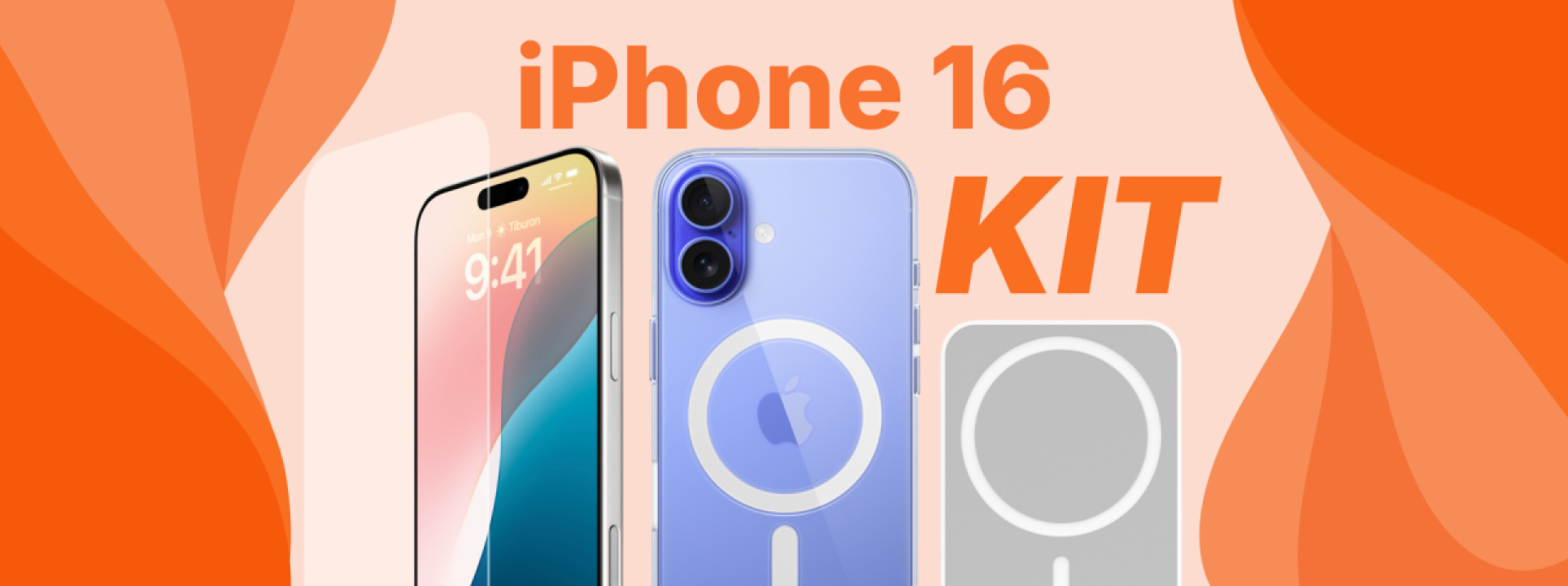
Conhece o Kit para o iPhone 16 da iServices
A iServices preparou um Kit para o iPhone 16, com Powerbank, Capa Transparente MagSafe e uma Película para proteger o mais recente Smartphone da Apple.