


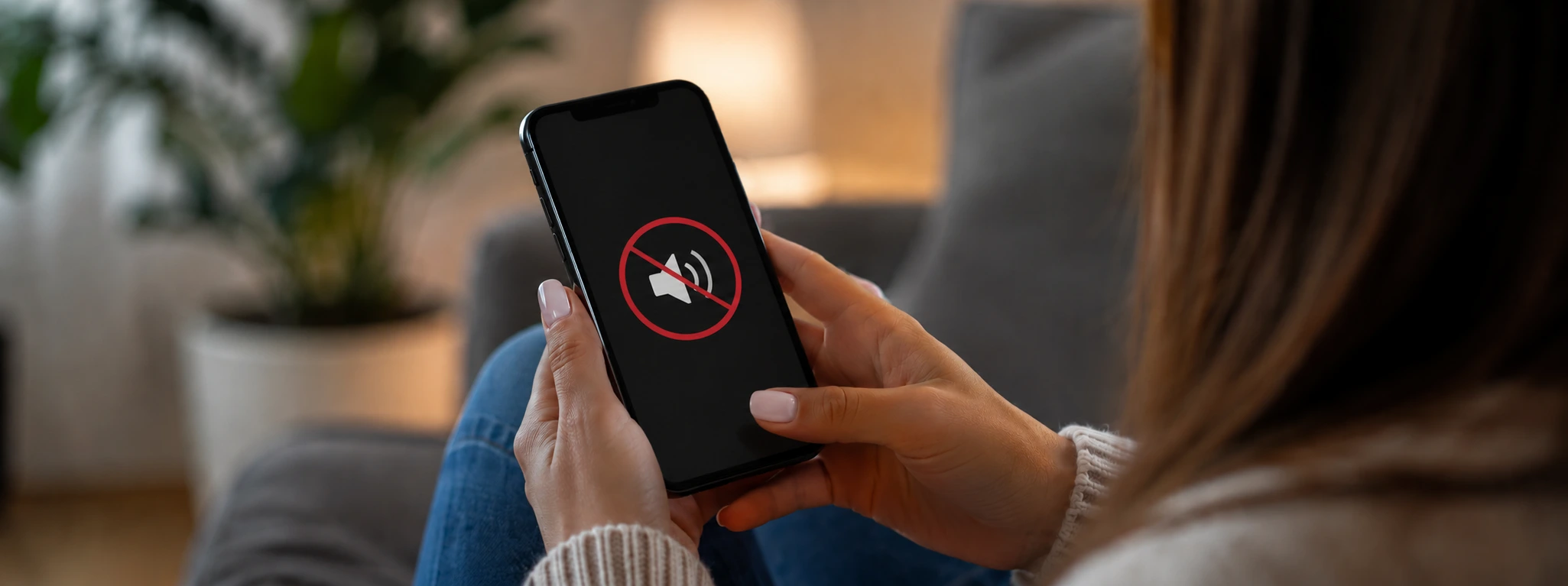




Can't Hear Calls on Your iPhone? How to Fix It
If you are an iPhone user, whether it is a model from the iPhone X to the latest iPhone 17 Pro Max, you may have experienced the frustration of not being able to hear calls. This problem can have various causes, ranging from incorrect device settings to hardware defects. At iServices, the market leader in phone repairs, we want to help you restore the quality of your calls with effective and easy-to-apply solutions.
In a world that is increasingly dependent on the phone for communication, not being able to hear the caller can cause significant inconvenience. Fortunately, many problems related to call audio can be solved with a few basic steps before you seek professional help. In this article, we cover the most common causes, practical solutions, and when you should seek specialized help.
Why can't I hear calls on my iPhone?
Volume and screen setting problems
One of the simplest reasons you might not hear calls is that the volume is too low or the iPhone is in silent mode. In addition, the proximity sensor may malfunction, causing the audio not to be routed correctly to the earpiece.
Defective internal earpiece
The earpiece is the component responsible for the sound during calls. If it is damaged by impact, liquid ingress, or wear and tear, the sound may be inaudible or distorted.
Blockages by applications or the operating system
Some applications or iOS updates can cause conflicts in the audio system, resulting in a lack of sound during calls. These blockages can be temporary or require deeper software intervention.
Hardware problems outside the earpiece
In addition to the earpiece, problems with the audio input, such as the Lightning port or Bluetooth audio systems, can interfere with sound reception during calls.
Table with solutions
| Cause | Recommended solution | Complexity |
|---|---|---|
| Low volume or silent mode | Adjust volume and check silent mode | Low |
| Defective proximity sensor | Clean sensor or restart iPhone | Medium |
| Damaged internal earpiece | Earpiece replacement at iServices | High |
| Software blockages | Restart iPhone or restore system | Medium |
| External hardware problems | Diagnosis and specialized technical repair | High |
Step-by-step solutions
Adjust volume and check silent mode
- Check that the iPhone's side switch is not set to silent (with the orange color visible).
- During the call, press the volume buttons to increase the sound.
- Go to "Settings" > "Sounds & Haptics" to confirm that the ringtone volume is set correctly.
Clean proximity sensor and restart iPhone
- Gently clean the sensor near the front camera with a soft, dry cloth.
- Restart the iPhone by holding down the side button and one of the volume buttons until the power off slider appears.
- Slide to power off and turn it back on after a few seconds.
Replace the internal earpiece
- If the above solutions do not work, the problem may be the internal earpiece.
- Go to one of our 76 iServices stores in Portugal for a free diagnosis.
- Our specialized technicians will perform the replacement with original parts and guarantee full functionality.
Restart or restore the operating system
- Back up your data via iCloud or iTunes.
- Go to "Settings" > "General" > "Transfer or Reset iPhone" > "Erase All Content and Settings".
- After the reset, set up the iPhone as new to test if the problem persists.
Diagnosis and repair of external problems
- Check if your iPhone is connected to Bluetooth devices that may interfere with the audio.
- Test calls with and without accessories connected.
- If you identify a problem, visit an iServices store for evaluation and professional repair.
Why can't I hear calls on my iPhone, even with the volume at maximum?
This may be due to issues with the proximity sensor that activates the sound from the internal earpiece, or even a defect in the earpiece itself. It is also important to check if silent mode is enabled or if there is an application interfering.
How can I test if my iPhone's earpiece is working correctly?
You can try listening to audio via a voice memo or use the FaceTime feature. If you hear no sound even with the volume at maximum, it is likely that the earpiece needs to be replaced.
What to do if the iPhone has no sound during calls, but the speaker works?
This often points to a problem with the internal earpiece. The speaker is responsible for sound in speakerphone mode, but normal call audio goes through the earpiece.
Can I fix the iPhone audio problem myself or do I need to go to a specialized store?
We always recommend trying the basic solutions, such as restarting the device or checking settings. If the problem persists, the best option is to contact iServices technical support, where we guarantee a diagnosis and repair with a warranty.
Do you need professional help? iServices is here for you
At iServices, we understand how important it is to be able to use your iPhone without interruptions. Our experienced technicians perform complete diagnoses and quick repairs so that your phone works like new again.
In addition, we offer express delivery and a warranty on all repairs, so you can have complete confidence in our services. Visit our website to find your nearest store or for more information. At iServices, your satisfaction is our priority and we are always ready to solve any problem with your iPhone.

 Gratis levering, verwacht overmorgen!

 36 Months
 36 Months
 36 Months
Other Articles
See more
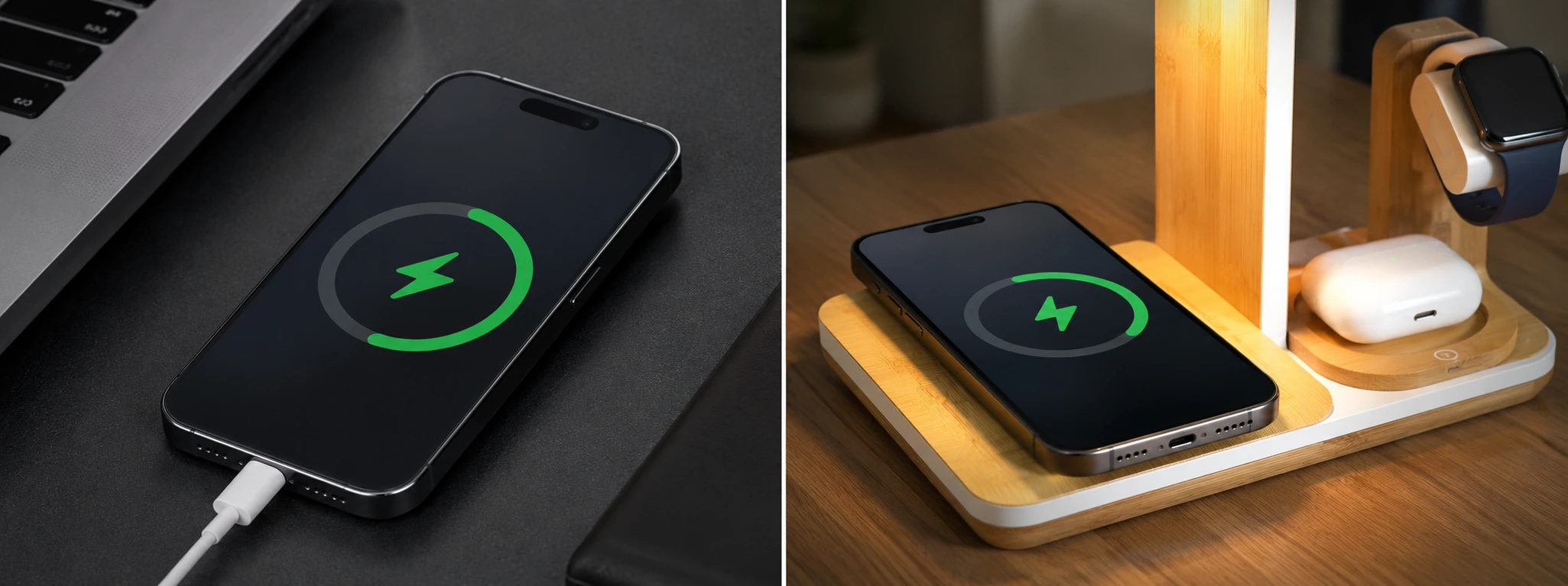
Dirty iPhone charging port: how to clean it
Discover how to clean your iPhone charging port to prevent problems. Tips for models from the iPhone X to the iPhone 16 Pro Max, with effective and safe solutions.

A iServices já tem Capas para o iPhone 17
Compra uma Capa para o iPhone 17 na iServices. Temos várias capas com cores e estilos diferentes para todos os modelos do novo Smartphone Apple.
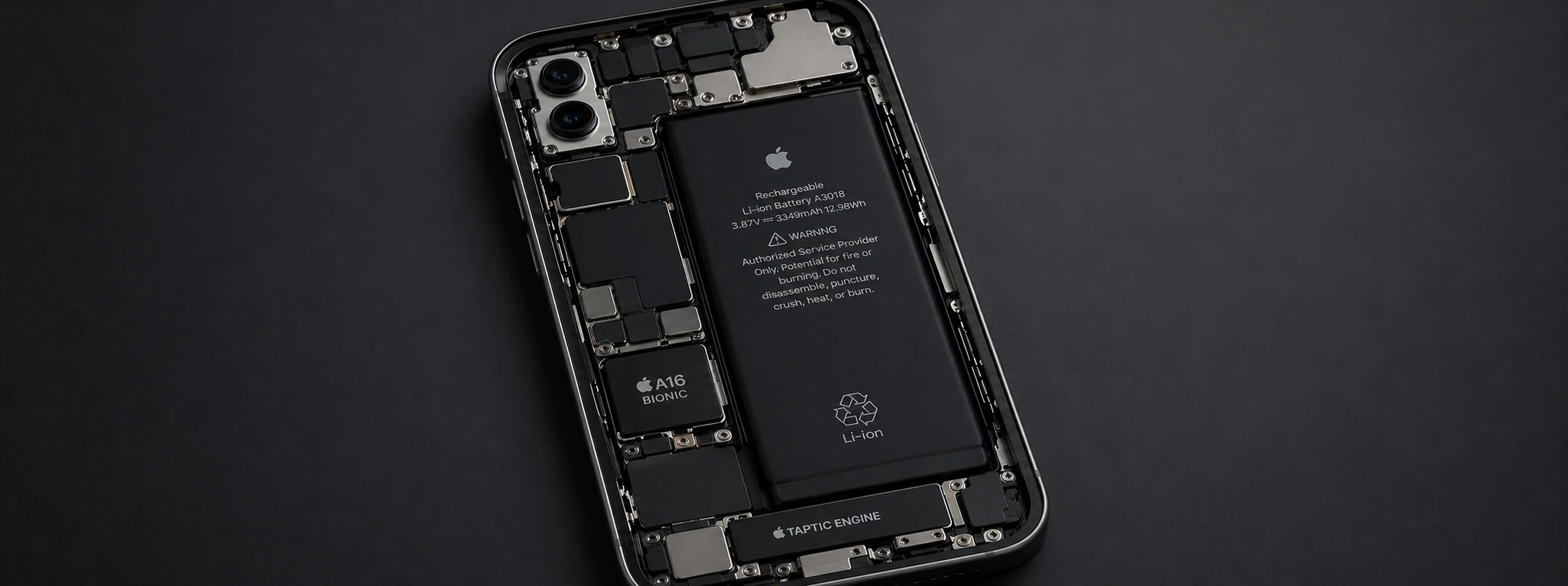
iPhone battery drains very quickly: Causes and Effective Solutions
Discover why the iPhone battery drains very quickly and discover effective solutions to extend your iPhone device's battery life, from the iPhone X to the iPhone 17 Pro Max.