










How to backup iPhone?
Backing up your iPhone is essential to ensure that your data is safe and can be easily restored in the event of a problem or when upgrading to a new device.
At iServices we have created this guide in which we show you how to backup your iPhone using iCloud or iTunes. All the steps we're going to show you can be used on all iPhone models with iOS 12 or later.
Backup iPhone from iCloud
Step 1: Connect to Wi-Fi
Make sure your iPhone is connected to a Wi-Fi network. It's worth remembering that iCloud backups require a stable internet connection.
Step 2: Open Settings
Go to the iPhone home screen and click “Settings”. It's usually accompanied by a gear icon.
Step 3: Apple ID
Scroll down and click on your Apple ID, which is located at the top of the Settings menu. Then a window will open with your Apple ID settings.
Step 4: iCloud Settings
Click on “iCloud” to access iCloud settings.
Step 5: Enable iCloud backup
Further down, tap on “iCloud Backup”. Turn on the switch if it is not already on.
Step 6: Start Backup
Click “Backup Now” to begin the backup process. Make sure your iPhone is plugged into a power source and that you have enough iCloud storage space to complete this entire process.
Backing up iPhone from iTunes
Step 1: Install the latest version
Make sure you have the latest version of iTunes on your computer. If you don't have it, install the latest version.
Step 2: Connect your iPhone to your computer
Using a USB cable, connect your iPhone to your computer. iTunes should open automatically. Otherwise, it opens iTunes manually.
Step 3: Trust the PC
If prompted, tap “trust” to establish the connection between the two devices.
Step 4: Select your iPhone in iTunes
In iTunes, click the iPhone icon in the upper-left corner of the window. A device summary page will open.
Step 5: Back up your iPhone
In the “backup” section, you choose either “iCloud” or “This computer” as the backup location. If you select the “This computer” option, click “Back up now” to start the backup process.
Step 6: Wait for the process to finish
Keep your iPhone connected to the computer until the entire process is complete. You can track all the progress in the iTunes window.
H2 FAQs about backing up your iPhoneHow often should I back up my iPhone?
The recommendation is that you should back up your iPhone every month. A way to save the most recent data and restore it easily and easily.
How long does it take to backup iPhone?
It depends on some factors such as the speed of the internet connection or the amount of data on the smartphone. It usually takes a few minutes.
Is it possible to access your iCloud backup on a different device?
Yes, you can access your backup from an iOS device, just use your Apple ID. It is worth remembering that when accessing from a “new” cell phone or computer, you will be asked to restore from an iCloud backup.
Can I only back up specific data from my iPhone?
Yes, you can choose which data or files you want to include in your iPhone backup. In the iPhone settings you can enable/disable various types of data (contacts, photos, application data).
Is it possible to backup iPhone without Wi-Fi?
No, to make a backup with iCloiud you will need to have a fairly stable Wi-Fi connection. However, if you back up with iTunes on a computer there is no longer a need to connect to Wi-Fi.
Recommended Products
View all

 36 Months
 36 Months
€19.95
36 Months
Other Articles
See more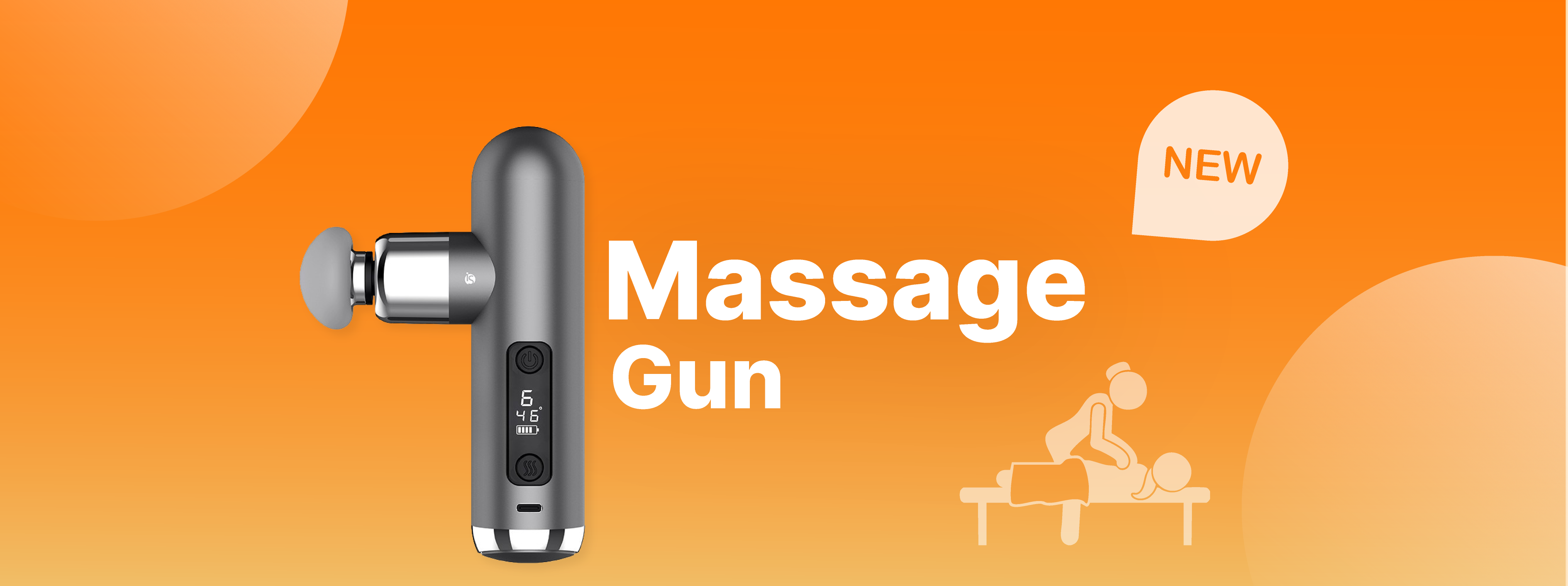
Relaxa com a Pistola de Massagem da iServices
A iServices tem agora o melhor massajador portátil do momento. Alívio rápido de tensões, dores a qualquer momento, em qualquer lugar.
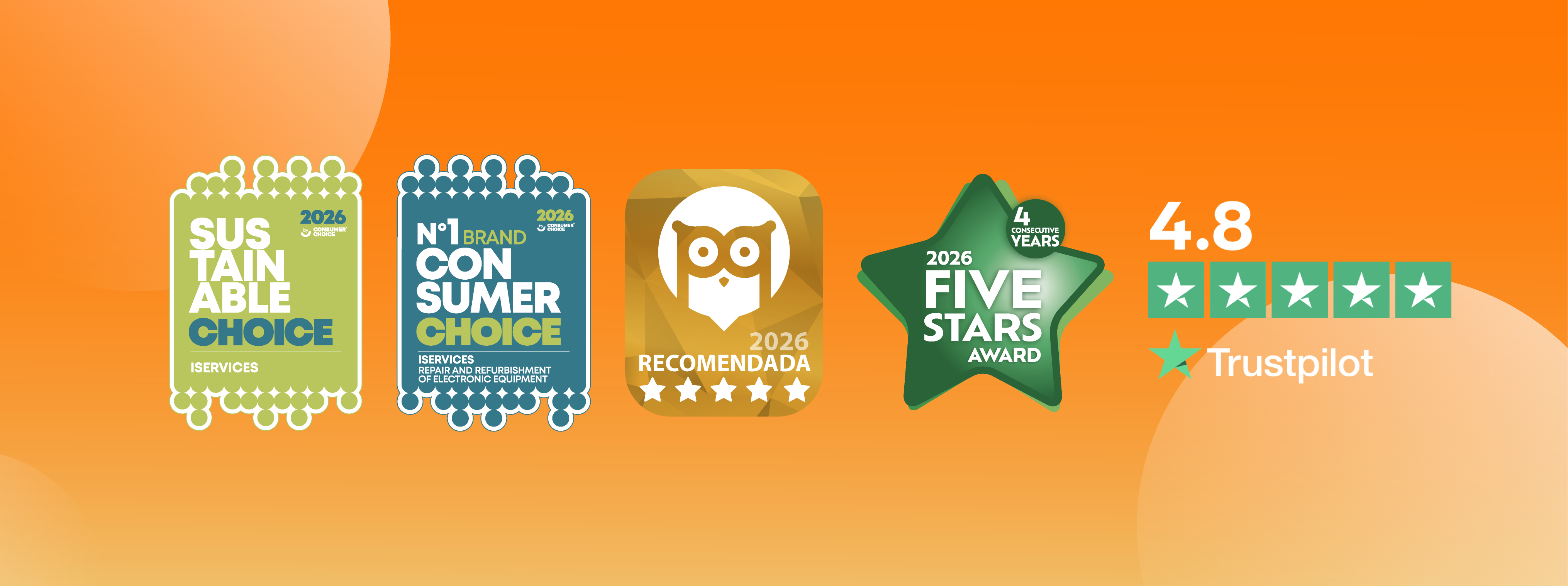
2026 Awards confirm iServices as a benchmark.
In 2026, iServices once again won several awards in different categories. Distinctions that attest to iServices as a benchmark.

Já conheces a Pulseira Inteligente da iServices?
Descobre a Pulseira Inteligente da iServices, uma Smart Band até 30 dias de autonomia, GPS e notificações úteis. Ideal para o desporto.