





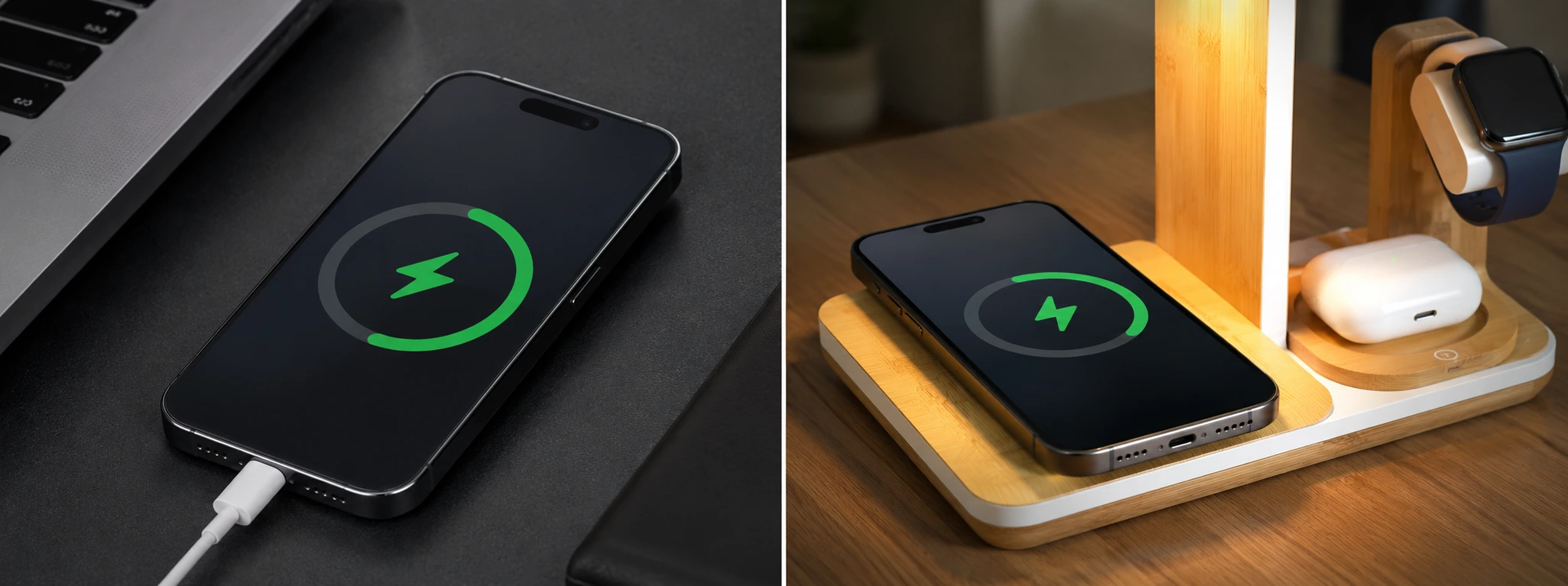




iPhone not charging: o que fazer?
If your iPhone, from the iPhone X to the latest iPhone 17 Pro Max, is not charging, it can be a frustrating and worrying situation. The battery is an essential component for the daily use of your mobile phone, and when the device does not respond to charging, it can compromise your productivity and communication. At iServices, we know that this problem is frequent and can have several origins, from simple errors to more complex technical faults.
In this article, we will explain the main reasons why your iPhone is not charging, offer a practical table with recommended solutions, and guide you step by step through the actions you can take to resolve the problem. Furthermore, we answer the most common questions from users facing this difficulty, ensuring that you have all the necessary information to take care of your iPhone in the best way.
What to do if the iPhone is not charging
Damaged Cable or Charger
One of the most common causes for the iPhone not charging is related to the cable or the power adapter. Broken, worn, or loose cables can prevent proper charging. In addition, counterfeit or low-quality chargers may not provide enough power.
Dirty or Damaged Charging Port
The iPhone's Lightning connector is susceptible to the accumulation of dust, lint, or debris that makes it difficult for the cable to connect. It can also be damaged due to excessive use or incorrect insertions, preventing proper contact.
Software Problems
Sometimes, the iPhone may present errors in the operating system that block the charging process. This can happen after updates with bugs, temporary glitches, or apps that interfere with normal operation.
Worn or Damaged Battery
Over time, the iPhone's battery loses capacity and may stop receiving or storing a charge correctly. In extreme cases, the battery may be damaged and need replacement to restore efficient charging.
Solutions Table
| Cause | Recommended Solution | Complexity |
|---|---|---|
| Damaged Cable or Charger | Test with original and new cable and charger | Low |
| Dirty or Damaged Charging Port | Carefully clean the port or repair at the store | Medium |
| Software Problems | Restart the iPhone or restore the system | Medium |
| Worn or Damaged Battery | Replace the battery at iServices | High |
Step-by-Step Solutions
Test Original Cable and Charger
- Turn off the iPhone.
- Use an original or Apple-certified cable and charger.
- Connect the iPhone to the power source and observe if it starts charging.
- If it does not charge, test with another cable or charger to rule out the possibility of accessory failure.
Clean or Repair the Charging Port
- Turn off the iPhone for safety.
- Use a small, soft brush or a toothpick to carefully remove dust or debris from the Lightning port.
- Avoid using metal objects that could damage the internal pins.
- If the problem persists, go to an iServices store for diagnosis and possible repair.
Restart or Restore the System
- Restart the iPhone by pressing the buttons appropriate for your model (example: side button + volume for iPhone X and later).
- If the problem continues, back up your data.
- Restore the iPhone via iTunes or Finder on your computer, following the official Apple instructions.
- If charging does not work after the restore, consider technical assistance.
Replace the Battery
- Check on the iPhone under Settings > Battery > Battery Health to see if the capacity is reduced.
- If the battery is degraded, schedule a replacement at iServices.
- Our specialized technicians perform the swap with original parts, ensuring quality and safety.
- After the replacement, your iPhone should charge normally.
Why is my iPhone not charging even though it is connected to the charger?
This may be due to problems with the cable, charger, or even a dirty charging port. It could also be a software problem that requires a restart or system update.
How can I know if my iPhone battery is degraded?
You can check the battery health under Settings > Battery > Battery Health. If the maximum capacity is below 80% or if the message “Battery needs maintenance” appears, replacement is recommended.
What should I do if my iPhone doesn't charge with any charger?
If you have already tested several original cables and chargers and the iPhone still does not charge, the problem may be in the battery, the charging port, or the system. In this case, we advise you to visit an iServices store for a detailed diagnosis.
Can I continue to use the iPhone if it doesn't charge properly?
Depending on the cause, the iPhone may shut down unexpectedly or fail to turn on after the battery runs out. Using the device in these conditions can cause further damage, so it is important to resolve the issue as soon as possible.
Need Professional Help? iServices Is Here for You
If your iPhone is not charging and simple solutions did not work, count on us to help you. At iServices, we have several stores where our specialized technicians are ready to diagnose and repair your mobile phone quickly and safely.
We offer a warranty on repairs, express delivery for maximum convenience, and complete technical assistance for all models, from the iPhone X to the iPhone 17 Pro Max. Visit one of our stores or check our website at iservices.pt to schedule your service. We are here to ensure that your iPhone works like new again, with all the confidence and professionalism that only iServices can offer.
Recommended Products
View all

 36 Months
 36 Months

€19.95
36 Months


Other Articles
See more
iPhone won't turn on: causes and solutions
Find out why your iPhone won't turn on and discover effective solutions to fix this problem with iServices for all models.
iPhone Camera Blurry in All Photos: How to Fix
iPhone camera blurry in all photos? Discover the common causes and effective solutions for iPhone X to iPhone 17 Pro Max models at iServices.

iPhone Earpiece Volume Too Low? Practical Solutions
Is your iPhone earpiece volume low? Discover common causes and effective solutions for all models from iPhone X to 16 Pro Max at iServices.