





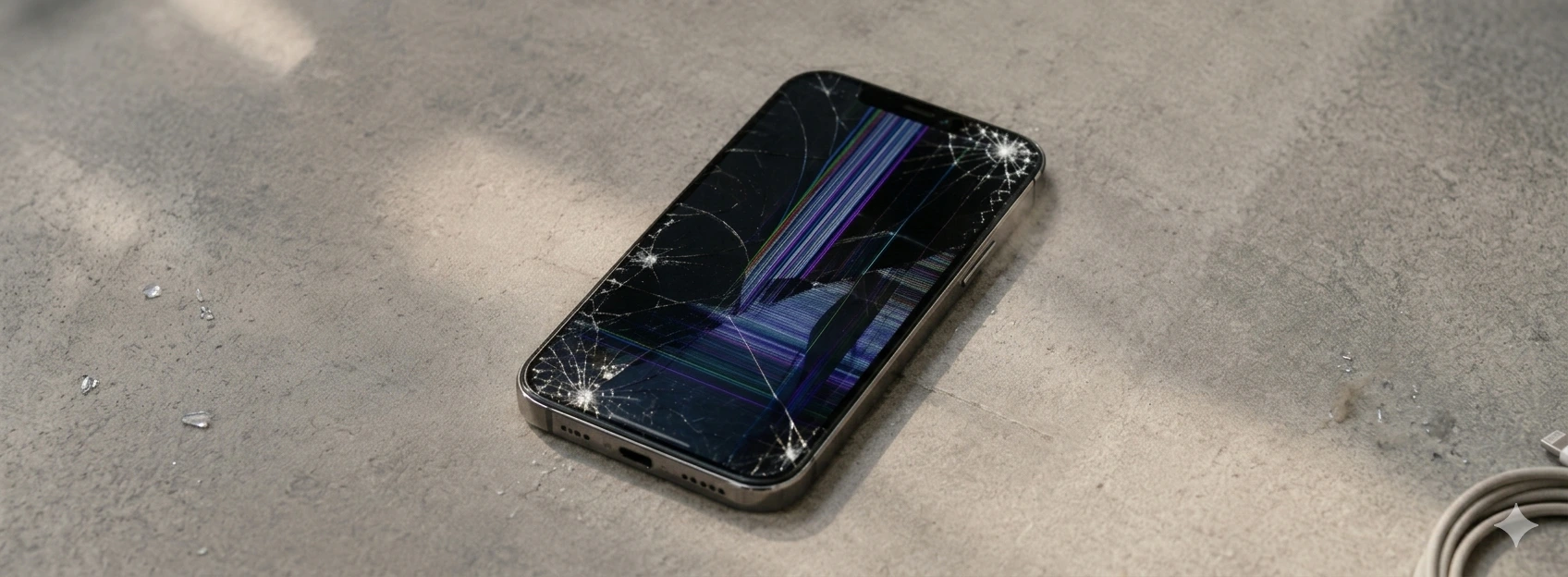




iPhone Screen Flickering: Causes and Solutions
If your iPhone's screen is flickering, it could be a sign of different problems affecting the device's operation. This phenomenon is common across various models, from the iPhone X to the latest iPhone 17 Pro Max. At iServices, we understand the importance of a functional screen, as it is the main interface between the user and the mobile phone.
In this article, we will explore the most frequent causes of a flickering screen and present practical solutions you can try before resorting to technical assistance. Furthermore, we explain when it is crucial to seek professional help to ensure your iPhone works perfectly.
Causes of an iPhone Screen Flickering
Software Issues or Incomplete Update
One of the most common causes for an iPhone screen to flicker is a software problem. Incomplete or failed iOS updates can cause system instability and interfere with screen operation. Incompatible applications or bugs in the operating system can also cause this effect.
Defect in the Screen Flex Cable
The flex cable is the component that connects the screen to the rest of the iPhone's hardware. If this cable is damaged, poorly installed, or has dirty contacts, it can cause an intermittent effect on the screen, such as flickering.
Hardware Problems with the Screen
Failures in the screen unit itself, such as pixel damage, screen controller failures, or backlight problems, can cause the screen to start flickering. This problem is more common in devices that have suffered drops or impacts.
Device Overheating
The iPhone may show a flickering screen if it is overheating excessively. Heat can affect both the hardware and software of the device, causing this type of visual anomaly.
Solutions Table
| Cause | Recommended Solution | Complexity |
|---|---|---|
| Software Issues | Update iOS / Restore iPhone | Low |
| Damaged Screen Flex Cable | Check and replace flex cable | Medium |
| Screen Defect | Full screen replacement | High |
| Device Overheating | Reduce workload, avoid hot environments | Low |
| Buggy Applications | Close problematic applications / Reinstall | Low |
Step-by-Step Solutions
Update iOS or Restore iPhone
- 1. Go to Settings > General > Software Update.
- 2. If an update is available, download and install it.
- 3. If the problem persists, back up your data.
- 4. Restore the iPhone to factory settings via iTunes or Finder on Mac.
- 5. Reinstall iOS and check if the problem is resolved.
Checking and Replacing the Screen Flex Cable
- 1. Go to an iServices store for specialized diagnosis.
- 2. Technicians will open your iPhone with specific tools.
- 3. They check the flex cable to identify damage or poor connection.
- 4. They replace the flex cable if necessary.
- 5. They test the device before returning it.
Full Screen Replacement
- 1. After diagnosis, if the screen shows irreparable damage, the unit will need to be replaced.
- 2. At iServices, we use original or high-quality equivalent parts.
- 3. Replacement is carried out by certified technicians.
- 4. The iPhone is rigorously tested to ensure perfect operation.
- 5. We offer a warranty on the repair for your peace of mind.
Reduce Overheating
- 1. Avoid using your iPhone in very hot environments or under direct sunlight.
- 2. Close applications that are consuming a lot of resources.
- 3. Turn off the phone for a few minutes to cool down.
- 4. Remove the case if it hinders heat dissipation.
- 5. If the problem persists, consult technical assistance.
Close or Reinstall Problematic Applications
- 1. Identify if the screen flickers when using a specific application.
- 2. Close the application by pressing the multitasking button and swiping up.
- 3. Update the application through the App Store.
- 4. If it continues to cause problems, uninstall and reinstall it.
- 5. Check if the problem has disappeared.
Why does my iPhone screen suddenly start flickering?
The iPhone screen can start flickering due to software problems, such as incomplete updates or bugs, or due to hardware issues, such as damaged flex cables or defects in the screen itself. Overheating and buggy applications are also common causes.
How can I tell if the screen problem is hardware or software related?
You can try restarting your iPhone or updating iOS to rule out software problems. If the problem persists even after restoration, it is likely a hardware issue. A professional diagnosis at iServices will confirm the origin of the problem.
Is it safe to continue using an iPhone with a flickering screen?
It is not recommended to use the phone under these conditions, as the problem can worsen and cause more serious damage to the device. Furthermore, flickering can be a sign of imminent screen failure.
How long does screen repair take at iServices?
At iServices, we offer express service, and the average screen repair time ranges from 30 minutes to 2 hours, depending on the model. We have several stores to provide you with fast and effective assistance.
Need Professional Help? iServices Is Here for You
If your iPhone's screen is flickering and the home solutions haven't worked, iServices has the answer for you. With several stores across Europe and a team of specialized technicians, we guarantee a rigorous diagnosis and repairs with quality parts, offering a warranty on all services.
Don't risk your iPhone's functionality. Visit an iServices store near you or check our website at iservices.pt to schedule your appointment. With express service and technical assistance nationwide, we are ready to restore your phone to its best working condition.
Trust iServices to take care of your iPhone with professionalism and speed because your phone deserves the best.
Recommended Products
View all
 36 Months
 36 Months

€19.95
36 Months


Other Articles
See more
Face ID says 'Move iPhone a little lower': How to fix it
Learn how to fix the 'Face ID says Move iPhone a little lower' error on iPhones from X to 17 Pro Max with iServices expert help.
iPhone battery drains in the cold: causes and solutions
Is your iPhone battery draining due to the cold? Discover the causes, effective solutions, and how iServices can help extend your iPhone's battery life at low temperatures.
Como transferir o eSIM do Android para o iPhone?
A iServices tem o guia completo e atualizado de todos os passos que deves seguir para transferir o teu eSIM de um Smartphone Android para o iPhone.