


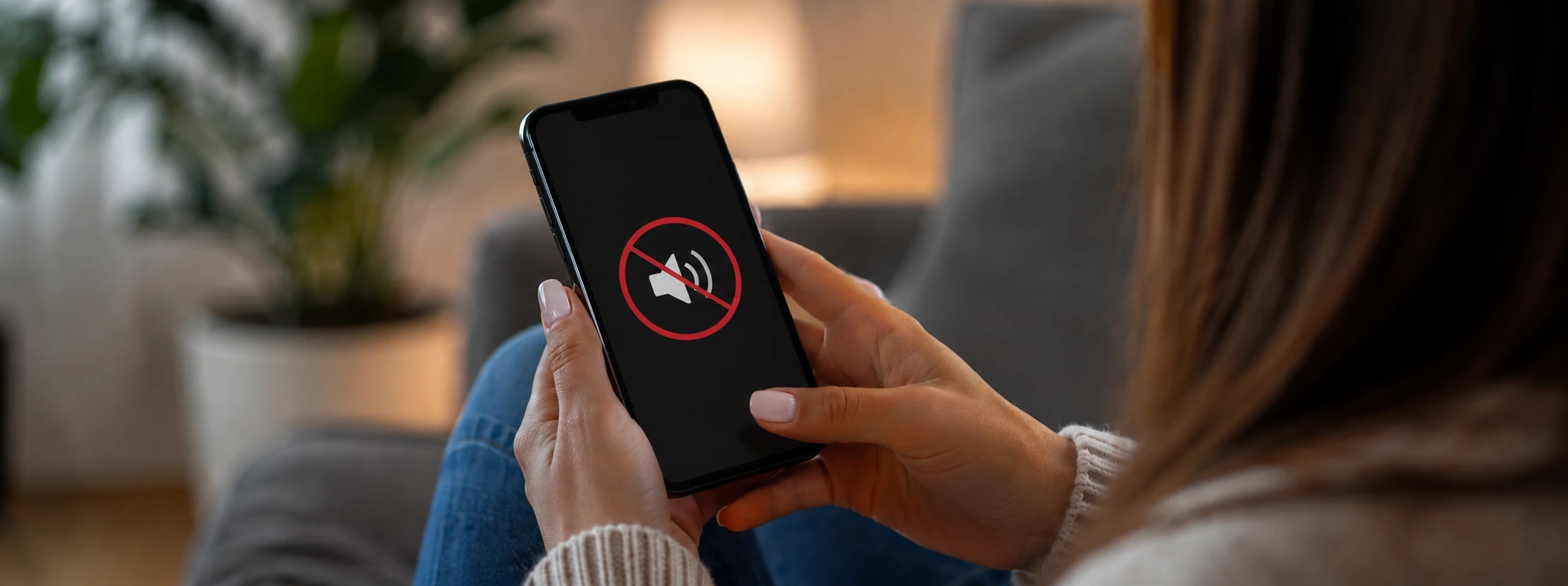




Background Noise on iPhone Calls: Causes and Solutions
Background noise during iPhone calls can be a frustrating experience for any user; it affects communication quality and makes it difficult to clearly hear the person on the other end of the line. This problem can occur with various models, from the iPhone X to the latest iPhone 17 Pro Max, and can be related to both software and hardware issues.
At iServices, we understand how important it is for your phone to function perfectly, especially when making calls is an essential part of your daily life. In this article, we explore the most common causes of background noise during iPhone calls and present effective solutions to resolve this problem, ensuring you have a crystal-clear calling experience without interference.
Causes of background noise during iPhone calls
Clogged or damaged microphone
The iPhone microphone is a fundamental component for sound quality during calls. Dust, dirt, or physical damage can cause background noise, preventing the user's voice from being captured correctly and allowing unwanted sounds to pass through.
Interference from background applications
Some applications that use the microphone in the background can cause conflicts, resulting in noise or echo during calls. This often happens with voice recording apps, VoIP calls, or social media that have access to the microphone.
Software issues and settings
Errors in the iOS operating system or incorrect settings can affect the proper functioning of audio components. Pending updates, bugs, or incorrect settings can cause unwanted noise during calls.
Damage to internal hardware
In addition to the microphone, other internal components, such as the audio module or the circuit responsible for sound processing, may be damaged due to drops, moisture, or wear and tear, leading to persistent background noise.
Table with solutions
| Cause | Recommended solution | Complexity |
|---|---|---|
| Clogged or damaged microphone | Carefully clean the microphone | Low |
| Interference from applications | Close background applications | Low |
| Software issues and settings | Update iOS and restart iPhone | Medium |
| Damage to internal hardware | Diagnosis and repair at iServices store | High |
Step-by-step solutions
Carefully clean the microphone
- Turn off the iPhone to prevent damage during cleaning.
- Use a fine, dry brush or a soft toothbrush to gently remove dirt from the microphone, which is usually located at the bottom of the phone.
- Avoid using liquids or sharp objects that could damage the components.
- Turn the iPhone back on and test a call to confirm if the background noise is gone.
Close background applications
- Go to the recent applications menu on your iPhone (swipe up from the bottom of the screen or press the Home button twice, depending on the model).
- Swipe away the applications that might be using the microphone to close them completely.
- Make a call to check if the noise has been eliminated.
Update iOS and restart iPhone
- Go to Settings > General > Software Update.
- If an update is available, download and install it. After the update, restart your iPhone by pressing the side button and one of the volume buttons until the power off option appears.
- Turn the device back on and test a call.
Diagnosis and repair at iServices store
- If the previous solutions do not resolve the problem, a detailed technical assessment is necessary.
- Visit one of our iServices stores for a free diagnosis.
- Our specialized technicians will identify any hardware damage and proceed with the necessary repair, ensuring service quality.
- Benefit from the warranty on the repair and available express services.
Why does my iPhone only have background noise during phone calls, but not in voice recordings?
The background noise during calls may be related to audio processing during transmission, which differs from local recordings. Problems in the software responsible for managing calls or network interference can cause this noise, even if the microphone works normally during recordings.
How do I know if the noise problem is caused by hardware or software?
You can perform simple tests, such as restarting the device, updating iOS, and closing background applications. If the noise persists even after these actions, it is likely a hardware issue. iServices recommends a professional diagnosis to confirm this.
Is it safe to clean the iPhone microphone at home?
Yes, as long as you use suitable tools and are careful not to stick liquids or sharp objects into the microphone. If you feel unsure, you can always ask for help at an iServices store to avoid damage.
How long does the repair of the microphone or related hardware take in case of noise during calls?
At iServices, we offer express delivery and efficient technical assistance. Most repairs related to the microphone or audio module are carried out on the same day or within a few working days, depending on the complexity of the problem and the availability of parts.
Do you need professional help? iServices is here for you
If your iPhone continues to show background noise during calls, do not hesitate to seek specialized help. At iServices, we have 76 stores in Portugal, equipped with experienced technicians who provide accurate diagnoses and high-quality repairs. We offer a warranty on all our services, so you can have complete confidence in your phone after the intervention.
In addition, we offer express delivery for those who cannot wait and comprehensive technical support throughout the country. Visit our website to find the nearest store. At iServices, we are always ready to ensure that your iPhone works noise-free, with the quality you deserve.

 Gratis levering, verwacht dinsdag!

 36 Months
 36 Months
 36 Months
Other Articles
See more

A iServices já tem Capas para o iPhone 17
Compra uma Capa para o iPhone 17 na iServices. Temos várias capas com cores e estilos diferentes para todos os modelos do novo Smartphone Apple.

Frozen iPhone screen: Oorzaken en Oplossingen
Learn how to fix a frozen iPhone screen with effective solutions for all models, with the help of iServices.

Finding a switched-off iPhone: Is it really possible?
Is it possible to locate a switched-off iPhone? Discover with iServices how the Find My app works, the Apple network and what you need to do.