







iPhone Stuck in Boot Loop: Causes and Solutions
The phenomenon where an iPhone gets stuck in an infinite restart loop (boot loop) is a frustrating situation that affects many users, regardless of the model, from the iPhone X to the latest iPhone 17 Pro Max. This problem can prevent normal access to the device, making identifying and resolving the cause urgent to avoid data loss and ensure the correct functioning of the phone.
At iServices, we understand the importance of a functional phone in the daily lives of our customers. Therefore, in this article, we have collected the main causes that lead to the iPhone restarting continuously, as well as the recommended solutions for each situation. If you are looking for an effective and professional solution, you have come to the right place.
Why does the iPhone keep restarting?
Damaged software update
One of the most common causes for an iPhone getting stuck in a restart loop is an iOS update that was not completed correctly or that contains bugs. This problem can occur on both older models and recent versions, such as the iPhone 16 Pro Max, due to incompatibility or errors during installation.
Faulty or incompatible applications
Some installed applications can cause conflicts in the operating system, especially if they have not been updated to the latest version of iOS. This can lead to constant restarts, especially if the application attempts to access critical functions of the phone.
Hardware problems
Physical defects, such as a degraded battery, motherboard problems, or screen damage, can cause a restart cycle. Older models, such as the iPhone X, may be more sensitive to these problems due to natural wear and tear, but the possibility also exists with newer devices.
System configuration errors or damaged data
Incorrect configurations or damaged system files can lead to the iPhone falling into an endless restart loop. This can happen after failed recovery actions, data transfers, or manual changes to the system.
Table of solutions
| Cause | Recommended solution | Complexity |
|---|---|---|
| Damaged software update | Restore iOS via iTunes or Finder | Medium |
| Faulty applications | Remove or update problematic apps | Low |
| Hardware problems | Diagnosis and part replacement at iServices | High |
| System configuration errors | Reset settings or full restore | Medium |
Step-by-step solutions
Restore iOS via iTunes or Finder
- Connect the iPhone to the computer using the correct cable.
- Open iTunes (Windows/macOS Mojave or older) or Finder (macOS Catalina or newer).
Put the iPhone in recovery mode:
- For iPhone X and newer: briefly press the volume up button, briefly press the volume down button, and hold the side button until the recovery mode appears.
- When the option appears, select "Restore" to reinstall iOS.
- Wait for the process to complete and configure the device.
Remove or update problematic applications
- Identify the application that is possibly causing the problem (you can test by removing the most recently installed apps).
- Tap and hold the app icon until the menu appears.
- Select "Remove App" and confirm.
- Visit the App Store to update the remaining applications.
- Restart the iPhone and check if the problem persists.
Diagnosis and part replacement at iServices
- Visit one of our stores for a free diagnosis.
- Our specialized technicians will assess the condition of the hardware.
- If necessary, we will replace parts such as the battery, motherboard, or screen with original parts.
- We offer a warranty and express repairs for extra convenience.
Reset settings or full restore
- Go to "Settings" on the iPhone.
- Go to "General" > "Transfer or Reset iPhone" > "Reset".
- Choose "Reset All Settings" for a simple reset or "Erase All Content and Settings" for a full restore.
- Confirm and wait for the process to complete.
- Configure the iPhone as new or restore from a backup.
Why does my iPhone keep restarting after an update?
This often happens due to errors during iOS installation, which can damage essential system files. Restoring the iPhone via iTunes or Finder usually solves the problem by cleanly reinstalling the operating system.
How do I know if a hardware problem is causing the restart loop?
If the problem persists after the software-based solutions, there is likely a physical defect, such as a worn-out battery or damage to the motherboard. A professional diagnosis in an iServices store can confirm the source and suggest the best repair.
Is it safe to restore the iPhone to fix the problem? Will I lose my data?
A restore can erase all data, so it is advisable to make a backup first. If you do not have access to the iPhone, recovery mode may be the only solution, but this means data loss if you do not have a backup.
What should I do if the iPhone is in a restart loop due to an application?
You must identify and remove the problematic application. If you do not know which one it is, start by removing the most recently installed applications and keep the system and applications updated to prevent incompatibility.
Do you need professional help? iServices is here for you
If your iPhone is in a restart loop and home solutions have not worked, visit one of the iServices stores. In our stores, we offer a free diagnosis, specialized technical assistance, and fast repairs, ensuring the quality and durability of your device.
At iServices, we only use original parts and offer a warranty on all interventions. In addition, we have express repairs so that your phone is operational again as soon as possible. Visit our website for more information and to find the nearest store. Trust our technicians to get your iPhone back in top condition.
 Gratis levering, verwacht dinsdag!
 36 Months
 36 Months
 36 Months
Other Articles
See more
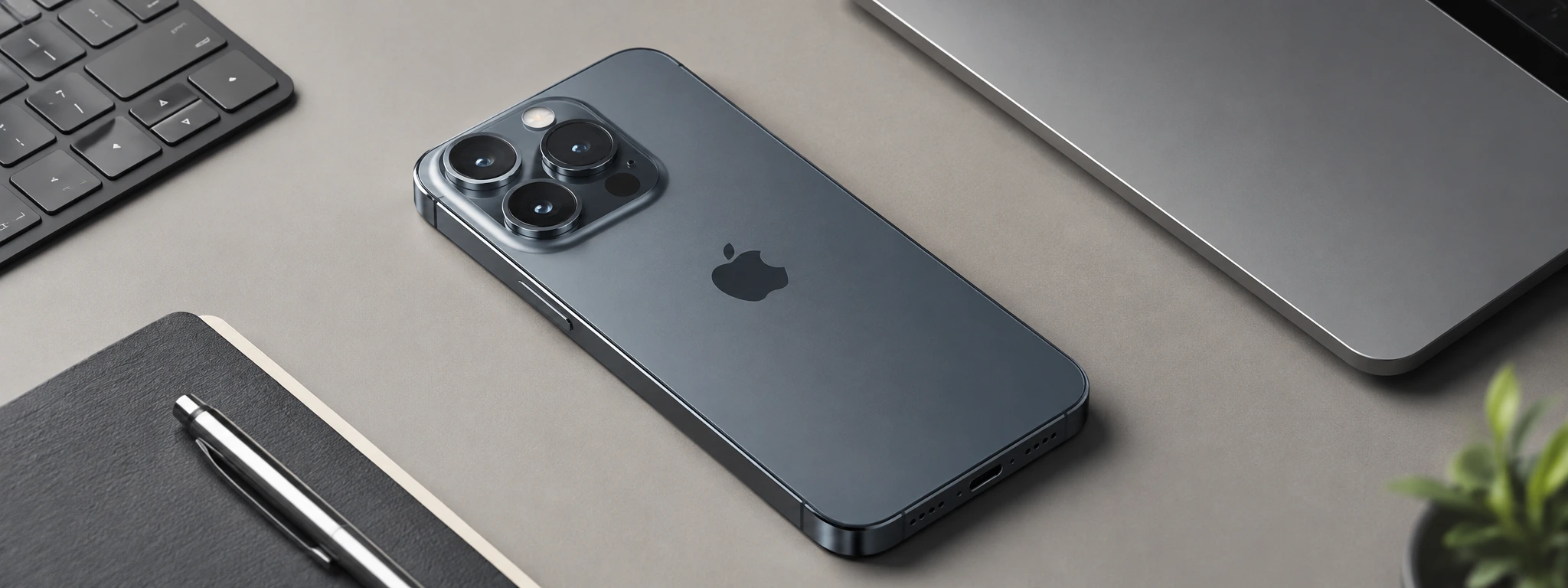
iPhone 18: release date, models and new features
When will the iPhone 18 be released? Discover the release dates of the iPhone 18 Pro, 18 Pro Max and iPhone Duo and what we already know about the new Apple generation.

iPhone front camera blurry: causes and solutions
iPhone front camera blurry? Discover the causes and effective solutions for iPhone X to iPhone 17 Pro Max models at iServices.

Face ID says 'Move iPhone a little lower': How to fix it
Learn how to fix the 'Face ID says Move iPhone a little lower' error on iPhones from X to 17 Pro Max with iServices expert help.