


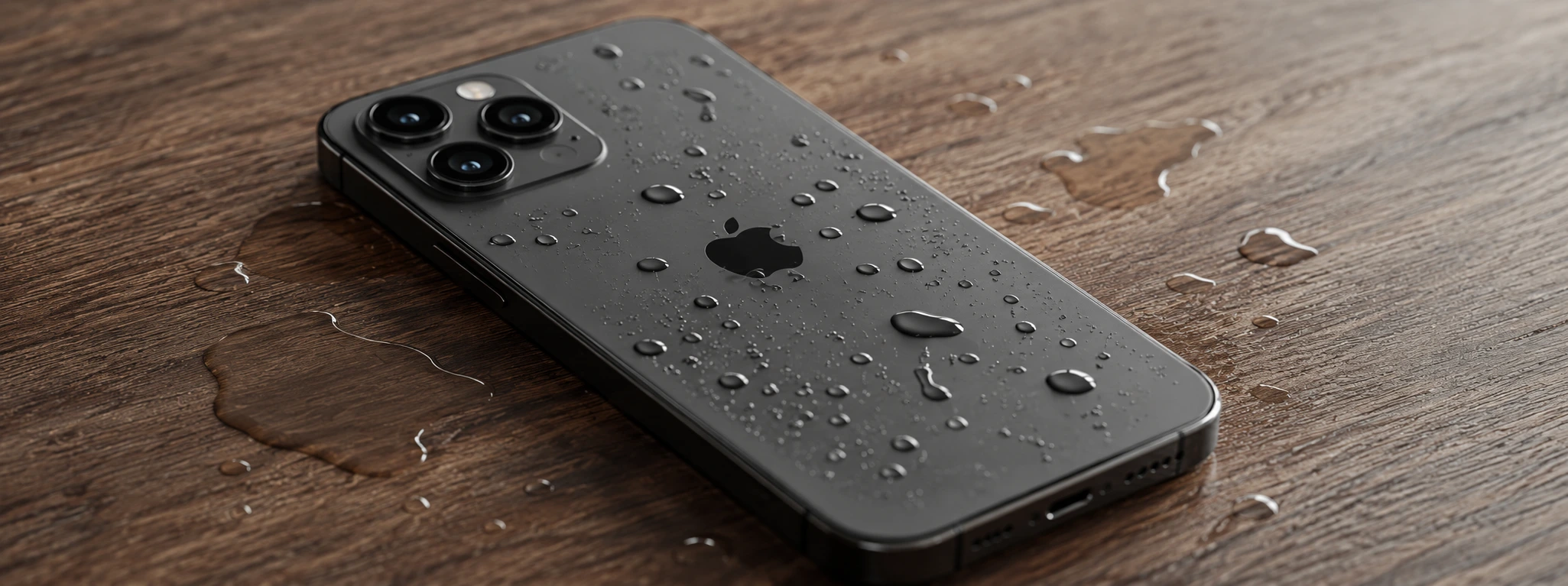




Face ID no longer works after contact with water: what to do?
Face ID is one of the most advanced features on iPhones, from the iPhone X model to the latest iPhone 17 Pro Max. This technology allows you to unlock your phone quickly and securely using facial recognition sensors. However, contact between your iPhone and water can compromise the functioning of Face ID, leaving many users worried and unsure of how to resolve the problem.
At iServices, we know that such situations are frequent and that water, even in small amounts, can affect the front sensors of your phone, causing facial recognition failures. In this article, we will explain the most common causes that lead to Face ID failure after contact with water, present practical solutions, and indicate when it is necessary to seek qualified technical assistance.
What causes water in iPhone Face ID?
Damage to TrueDepth sensors
Face ID relies on TrueDepth sensors, which include an infrared camera, dot projector, and other sensitive electronic components. When the phone comes into contact with water, these sensors can be temporarily blocked or damaged due to moisture, preventing facial recognition.
Moisture accumulated inside the phone
Even if the iPhone is water-resistant, moisture can seep into the inside of the device, especially if the seal is compromised. Internal moisture can interfere with the operation of the sensors and the facial recognition system, causing Face ID failures.
Outdated or buggy software
Sometimes, contact with water can cause minor software errors or glitches in the iOS operating system, causing Face ID to stop working. Updating the software can fix bugs and restore normal Face ID operation.
Physical damage or corrosion
If the contact with water was prolonged or involved salt water, corrosion or physical damage may occur to the phone's electronic components, including the TrueDepth system. In these cases, Face ID may stop working permanently, requiring specialized technical intervention.
Solution Table
| Cause | Recommended Solution | Complexity |
|---|---|---|
| Damage to TrueDepth sensors | Dry carefully and restart the iPhone | Low |
| Moisture accumulated inside | Place the iPhone in a dry environment and use silica gel | Medium |
| Outdated software or error | Update iOS and restart the device | Low |
| Physical damage or corrosion | Diagnosis and repair at iServices | High |
| Compromised seal | Seal replacement and resistance test | High |
Step-by-Step Solutions
Dry carefully and restart the iPhone
- Turn off the iPhone immediately to avoid short circuits.
- Use a dry, soft cloth to clean the screen and the front of the phone.
- Leave the iPhone in a dry and ventilated place for at least 24 hours.
- After this time, turn the phone on and try to use Face ID.
- If it still doesn't work, try restarting the device.
Place the iPhone in a dry environment and use silica gel
- Turn off the phone and remove any protective case.
- Place the iPhone in an airtight box with several silica gel packets (desiccants).
- Let it rest for 48 hours to allow the moisture to be absorbed.
- Check if Face ID has returned to work by turning on the phone.
Update iOS and restart the device
- Ensure your iPhone is connected to a Wi-Fi network.
- Go to Settings > General > Software Update.
- If an update is available, download and install it.
- After updating, restart the phone and test Face ID.
Diagnosis and repair at iServices
- Visit one of our 76 stores in Portugal for a professional diagnosis.
- Our specialized technicians will evaluate the damage to the TrueDepth sensors or the seal.
- If necessary, we replace the damaged components with original parts.
- We guarantee the repair with a warranty, express deliveries, and technical assistance throughout the country.
Seal replacement and resistance test
- If the problem is caused by a compromised seal, our technicians proceed with its replacement.
- After the intervention, we perform rigorous tests to ensure the device's water resistance.
- The phone is returned to the customer with a guarantee of Face ID functionality and reinforced protection.
Can Face ID work again on its own after contact with water?
In some cases, if contact with water was brief and the phone did not suffer serious damage, Face ID may start working again after careful drying and restarting the device. However, if moisture remains or there is internal damage, the feature may remain compromised.
Can I use rice to dry my iPhone after it gets wet?
Although it is a popular method, rice is not the most effective for absorbing moisture inside the phone. It is preferable to use silica gel packets or leave the device in a dry, ventilated environment. Rice can also leave residues that harm the equipment.
How long does an iServices Face ID repair take?
At iServices, we offer express deliveries and most repairs are completed within 24 to 48 hours, depending on the complexity of the problem. We also guarantee the quality of technical assistance and the use of original parts.
Need Professional Help? iServices Is Here for You
If your iPhone's Face ID has stopped working after contact with water, do not hesitate to visit one of our stores. Our specialized technicians are prepared to perform a detailed diagnosis and recommend the best solution for your equipment, whether it's a simple drying or a more complex repair.
At iServices, we offer a warranty on all interventions, express deliveries so you can get back to using your phone quickly, and qualified technical assistance throughout the country. Visit our website to find your nearest store or to schedule your appointment. Trust iServices to keep your iPhone working like new, with the security and speed you deserve.
 Gratis levering, verwacht dinsdag!
 36 Months
 36 Months
 36 Months
Other Articles
See more
iPhone 16, everything we already know
The launch of the iPhone 16 could be soon. At iServices you will find all the information about the new Apple iPhone, which will contain innovations in terms of the screen and in colors.
News: iPhone Air has arrived at iServices!
From now on you can buy the iPhone Air, or iPhone 17 Air as it is also known. Take advantage of the best price on the market and the 3-year warranty.
iPhone won't turn on after falling into water: causes and solutions
iPhone won't turn on after falling in water? Discover causes, solutions and specialized technical assistance at iServices with a warranty.