


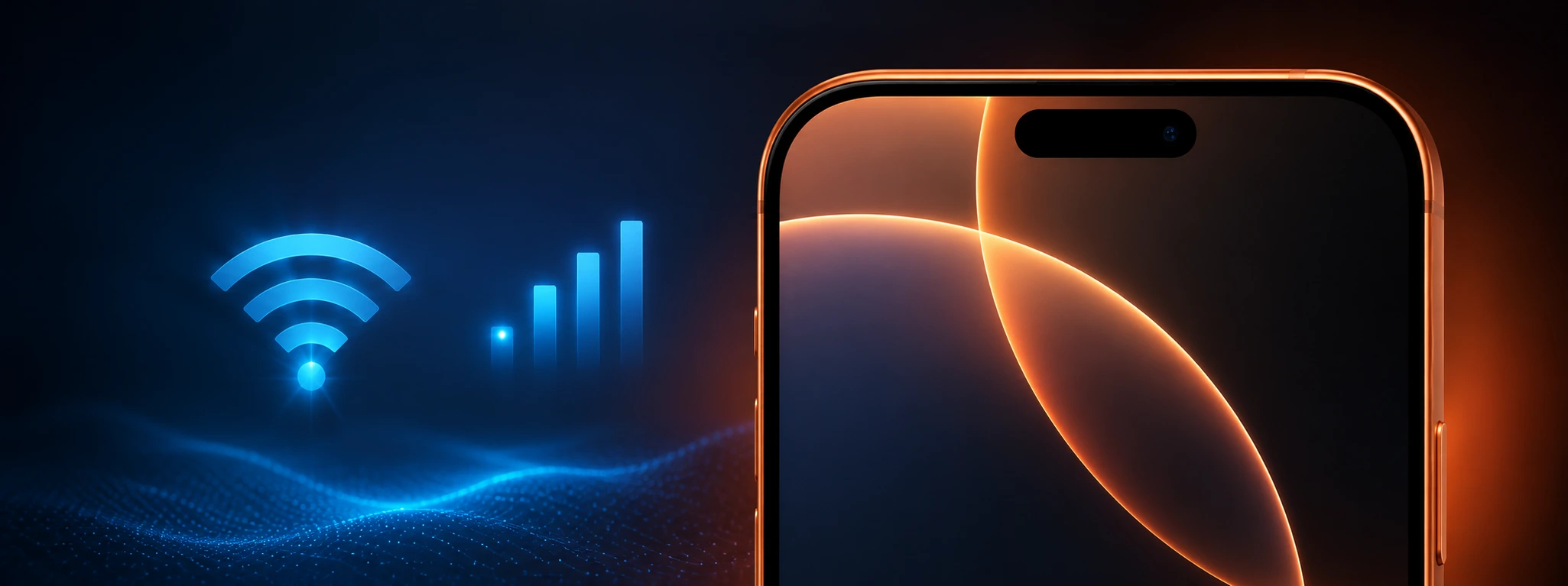




iPhone Wi-Fi not turning on or is greyed out: causes and solutions
If your iPhone's Wi-Fi does not turn on or appears greyed out, this is a common issue that can affect several models, from the iPhone X to the latest iPhone 17 Pro Max. This fault prevents access to wireless internet, limiting your phone's functionality and user experience. At iServices, we understand the importance of keeping your iPhone always connected and functional, so we have gathered the main causes and solutions for this problem.
Many users report that the Wi-Fi button is unavailable, unresponsive, or simply appears greyed out in settings. This situation may be due to software issues, incorrect settings, or even hardware faults. In this article, we explain in detail the most common causes, as well as the steps to solve the problem, ensuring your iPhone regains Wi-Fi connectivity effectively.
Causes of iPhone Wi-Fi not turning on
Temporary software failure
One of the most frequent reasons for Wi-Fi becoming unavailable is a temporary failure of the iOS operating system. It can occur due to blocked processes or internal software conflicts, especially after system updates that were not completed correctly.
Issues with network settings
Incorrect or corrupted network settings can prevent the Wi-Fi button from working normally. This includes errors in the network profile or changes made inadvertently by the user.
Interference or hardware problems
In more serious cases, the iPhone's Wi-Fi module may show physical faults due to damage caused by drops, moisture, or natural wear and tear. In these scenarios, the Wi-Fi button may remain permanently greyed out, indicating a hardware failure.
Bug or incompatibility after update
Some iOS updates may introduce bugs that affect Wi-Fi functionality, especially on older models like the iPhone X, or even on recent devices like the iPhone 16 Pro Max, until Apple releases fixes.
Solution Table
| Cause | Recommended Solution | Complexity |
|---|---|---|
| Temporary software failure | Restart your iPhone | Low |
| Issues with network settings | Reset network settings | Medium |
| Bug after update | Update iOS to the latest version | Medium |
| Hardware problems | Diagnosis and repair at an iServices store | High |
| External interference | Check environment and restart router | Low |
Step-by-Step Solutions
Restart your iPhone
- Press and hold the side button and the volume button until the slide to power off appears.
- Turn off your phone completely.
- Wait 30 seconds and turn the iPhone back on.
- Check if the Wi-Fi has returned to working normally.
Reset network settings
- Go to “Settings” on your iPhone.
- Select “General” and then “Transfer or Reset iPhone”.
- Tap “Reset” and choose “Reset Network Settings”.
- Confirm the action and wait for the phone to restart.
- Reconfigure the necessary Wi-Fi networks and test the functionality.
Update iOS to the latest version
- Go to “Settings” > “General” > “Software Update”.
- If an update is available, tap “Download and Install”.
- Follow the instructions to complete the installation.
- After the update, check if the Wi-Fi problem has been resolved.
Diagnosis and repair at an iServices store
If none of the above solutions solve the problem, it is most likely a hardware failure. At iServices, we have specialized technicians to diagnose and repair your iPhone's Wi-Fi module, ensuring the replacement of components or necessary repairs with a warranty.
Check environment and restart router
- Make sure your Wi-Fi router is on and working correctly.
- Delete saved Wi-Fi networks on your iPhone that might be causing a conflict.
- Restart the router by unplugging it for 30 seconds and plugging it back in.
- Try turning on the iPhone Wi-Fi again.
Why is my iPhone Wi-Fi greyed out and I cannot turn it on?
A greyed-out Wi-Fi button generally indicates that the operating system recognizes a failure, either software or hardware. It may be a temporary glitch that resolves with a restart, or a more serious problem requiring technical repair.
How can I reset network settings on my iPhone?
To reset network settings, go to “Settings”, then “General”, select “Transfer or Reset iPhone” and tap “Reset Network Settings”. This clears all saved Wi-Fi networks, passwords, and related settings, resolving potential conflicts.
My iPhone X will not turn on Wi-Fi after an iOS update, what should I do?
When Wi-Fi stops working after an update, the ideal is to check if there are any patches or additional updates available. If that does not resolve it, it may be necessary to restore the system or seek technical assistance.
Can iServices repair the Wi-Fi on my iPhone 16 Pro Max?
Yes, iServices is an expert in mobile phone repairs, including the most recent models such as the iPhone 16 Pro Max. We offer free diagnosis, fast repairs, and a warranty on all interventions.
Need Professional Help? iServices Is Here for You
If you have already tried all the solutions above and your iPhone's Wi-Fi still won't turn on or remains greyed out, do not hesitate to visit one of our stores. At iServices, we have a specialized technical team ready to diagnose and repair your phone with speed and professionalism.
We offer a warranty on repairs, express deliveries for greater convenience, and technical assistance across the country. Check out our services and schedule a visit now through our website. Trust iServices to restore the best performance to your iPhone, ensuring your Wi-Fi connectivity at any time.
 Gratis levering, verwacht dinsdag!
 36 Months
 36 Months
 36 Months
Other Articles
See more
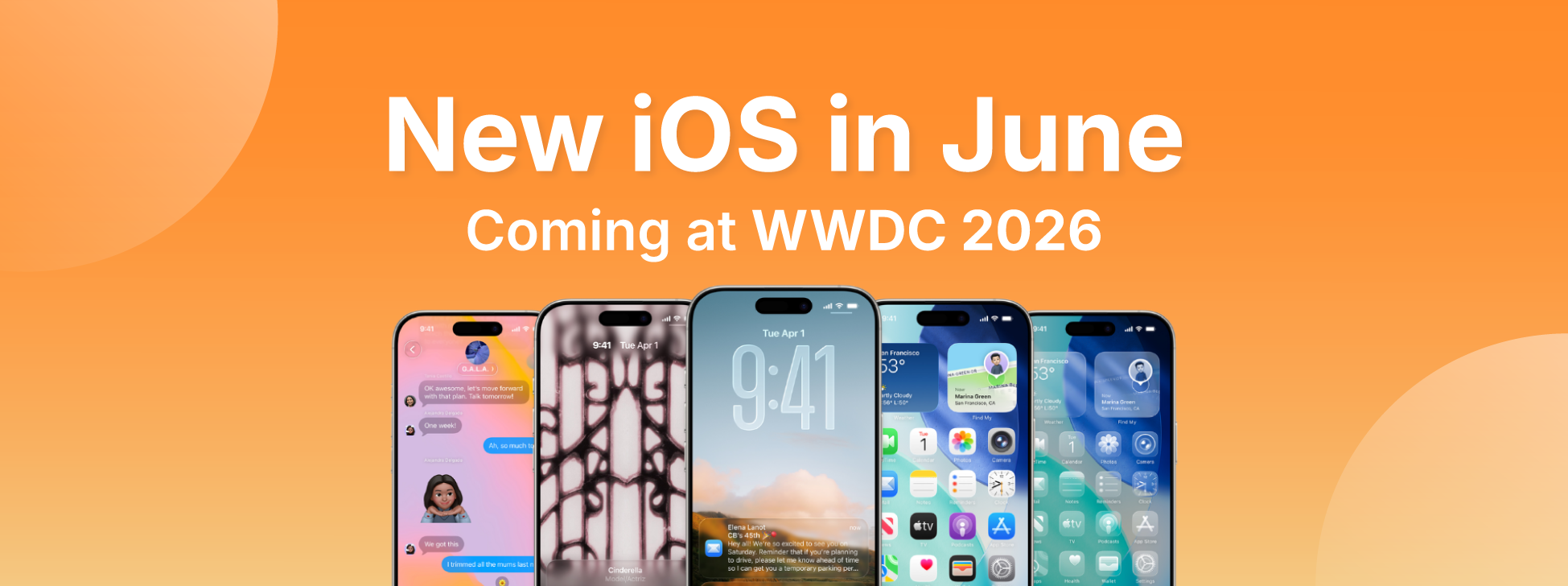
iOS 27, the new iPhone operating system, is coming
The WWDC 26 conference takes place between June 8th and 12th, where iOS 27 will be announced - the new iPhone operating system. Find out what's new.
iPhone not charging: o que fazer?
Find out what to do when your iPhone won't charge. Discover common causes and practical solutions for models from iPhone X to iPhone 17 Pro Max.
Non-genuine camera error on iPhone: How to identify and resolve
Learn how to fix the non-genuine camera error on iPhone, from the iPhone X to the iPhone 17 Pro Max, with effective solutions and iServices assistance.