







iPhone not backing up to iCloud: Causes and solutions
As an iPhone user, from the iPhone X to the latest iPhone 17 Pro Max, you know how important it is to keep your device safe with regular backups to iCloud. However, it can happen that the iPhone does not back up to iCloud, leaving you vulnerable to the loss of important data such as photos, contacts, messages, and settings. This problem can be frustrating, but at iServices, we explain the most common causes and how you can easily resolve this.
An iCloud backup is an essential feature for anyone who wants to guarantee the safety of their data and be able to easily restore everything in case of an emergency. Fortunately, most situations that prevent a backup can be resolved within minutes, without the need for technical support. In this article, we discuss the main causes that prevent iPhone backups to iCloud and present step-by-step solutions so your information is protected again.
Why is my iPhone not backing up to iCloud?
Insufficient iCloud storage space
One of the most common causes why the iPhone does not back up to iCloud is a lack of available space in the iCloud account. The free plan offers only 5 GB of space, which can quickly fill up with photos, videos, and app data, especially on newer models with larger storage capacities.
Internet connection problems
To successfully complete the backup, it is essential that the iPhone is connected to a stable Wi-Fi network. Connection issues, instability, or low speeds can prevent the iPhone from communicating correctly with Apple servers, blocking the backup process.
Incorrect backup settings
If the iCloud backup settings are turned off or incorrectly configured, the iPhone will not automatically create a backup. This can happen after iOS system updates or if the user has inadvertently changed the settings.
Apple ID account problems
Issues with the Apple ID account, such as a signed-out session, pending authentication, or synchronization errors, can prevent the device from saving data to iCloud. It is essential that the account is active, the session is signed in, and the account is functioning correctly to perform the backup.
Table of Solutions
| Cause | Recommended Solution | Complexity |
|---|---|---|
| Insufficient iCloud storage space | Manage storage or upgrade iCloud plan | Low |
| Internet connection problems | Check and improve Wi-Fi connection | Low |
| Incorrect backup settings | Enable and configure iCloud backup correctly | Medium |
| Apple ID account problems | Sign in again or reset Apple ID | Medium |
| iOS system errors | Update or restore iOS via iTunes/Finder | High |
Step-by-Step Solutions
Manage iCloud storage space
- Go to "Settings" on your iPhone.
- Tap your name, then "iCloud," and select "Manage Storage."
- Check the available space and delete old backups or data from apps you don't use.
- Purchase more space if necessary with a larger iCloud storage plan.
Check and improve Wi-Fi connection
- Ensure you are connected to a stable and fast Wi-Fi network.
- Restart the router if the connection is experiencing interruptions.
- Avoid public networks or networks with restrictions that may block access to Apple servers.
- Test the connection with other apps to ensure the internet is working correctly.
Enable and configure iCloud backup
- Go to "Settings" > "iCloud" > "iCloud Backup."
- Turn on the "iCloud Backup" option.
- Tap "Back Up Now" to test manually.
- Ensure the iPhone is connected to a power source during automatic backup.
Sign in to your Apple ID again
- In "Settings," tap your name and select "Sign Out."
- Restart the iPhone.
- Sign in again with your Apple ID and password.
- Check if the backup works now.
Update or restore iOS
- Check if iOS is updated via "Settings" > "General" > "Software Update."
- If the problem persists, create a local backup via iTunes/Finder.
- Restore the iPhone and configure it as new or from the saved backup.
- Contact technical support if the problem persists.
Why does my iPhone not back up to iCloud automatically?
Automatic backup can fail for various reasons, including lack of iCloud space, Wi-Fi connection issues, or disabled settings. Check if you are connected to a Wi-Fi network, if backup is enabled, and if you have enough space in your iCloud account.
How can I see how much space I have available in iCloud?
On the iPhone, go to "Settings," tap your name, select "iCloud," and then "Manage Storage." Here you can see how much space is used and how much is available, and you can manage what you want to keep.
What happens if the iCloud backup fails repeatedly?
If the backup continues to fail, try restarting the device, updating iOS, or signing out and back into your Apple ID. If the problem persists, it may be necessary to restore the iPhone or contact specialized support.
Can I back up an iPhone without Wi-Fi?
A backup to iCloud requires a Wi-Fi connection and is not possible via mobile data. To create a backup without Wi-Fi, you can use the connection to a computer via iTunes or Finder to save a local copy.
Need professional help? iServices is there for you
If your iPhone still won't back up to iCloud despite all these tips, iServices has the solution. In our stores, we offer specialized technical support for all questions related to your phone. Our highly qualified technicians are prepared to diagnose and resolve software and hardware problems that prevent you from backing up your iPhone.
At iServices, we guarantee speed, quality, and security in all repairs, with express delivery and a warranty on all services performed. Visit one of our stores for a free diagnosis or consult our website for more information about the available services. Trust iServices to keep your iPhone safe and functioning perfectly.
 Gratis levering, verwacht dinsdag!


 36 Months
 36 Months
 36 Months
Other Articles
See more

iPhone Screen Detached: Causes and Solutions
Learn how to solve the problem of the detached iPhone screen with effective solutions and specialized technical assistance from iServices.
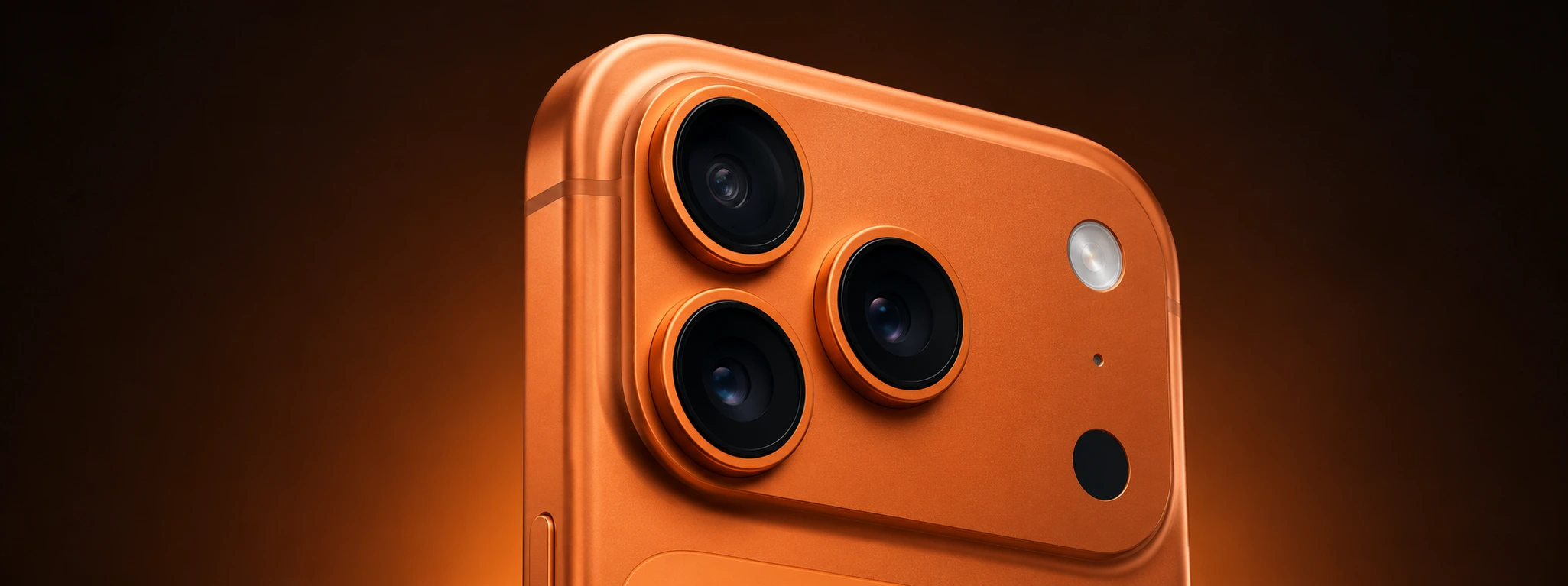
Non-genuine camera error on iPhone: How to identify and resolve
Learn how to fix the non-genuine camera error on iPhone, from the iPhone X to the iPhone 17 Pro Max, with effective solutions and iServices assistance.
iPhone flash not working: causes and solutions
Discover why your iPhone flash isn't working and find out how iServices can help you with fast and guaranteed solutions for your mobile.