


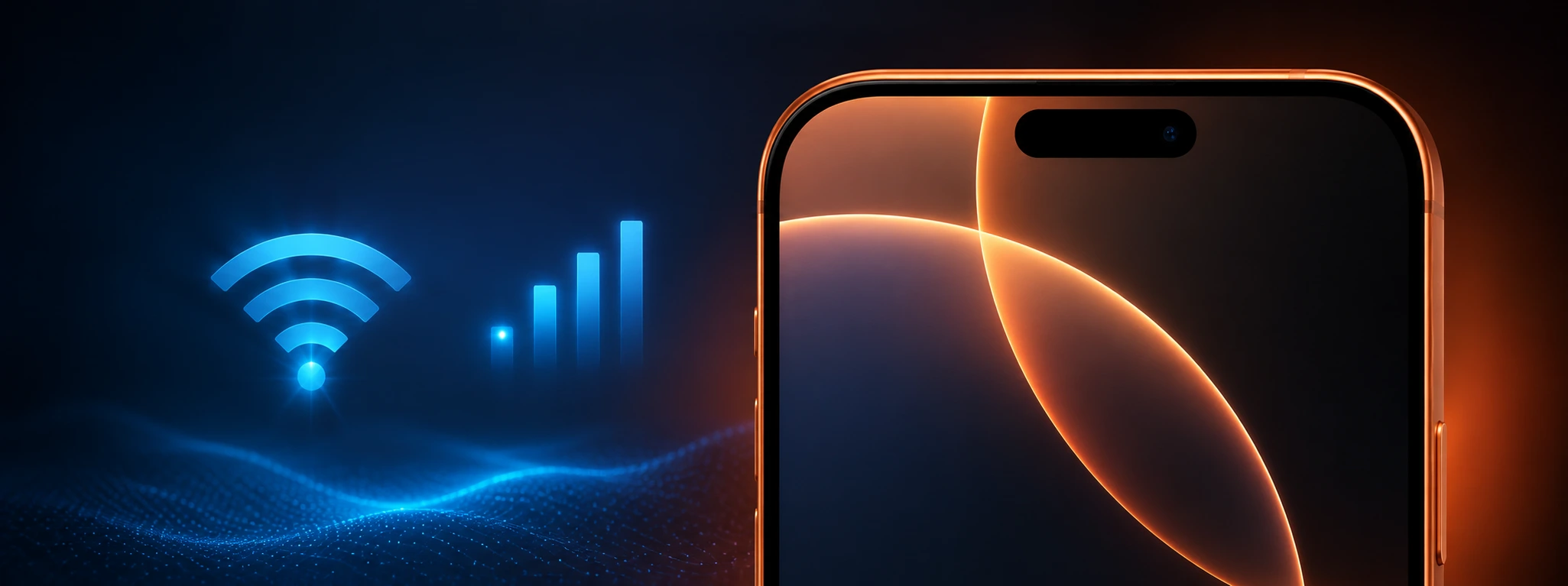




iPhone loses Wi-Fi connection: causes and solutions
If your iPhone is constantly losing its Wi-Fi connection, you know how frustrating this situation can be, whether you are browsing the internet, working, or using essential applications. This problem affects various models, from the iPhone X to the latest iPhone 17 Pro Max, and can have several origins, from software glitches to hardware issues.
At iServices, we understand the importance of a stable Wi-Fi connection for your daily life. That is why we have gathered the main causes and solutions for your iPhone losing its Wi-Fi connection intermittently, helping you to resolve this situation quickly and effectively.
What causes an iPhone to lose its Wi-Fi connection?
Problems with iPhone software
iPhone software can have errors or glitches that affect the Wi-Fi connection, especially after iOS updates that were not installed correctly or that contain bugs. Incorrect network settings or corrupted caches can also cause connection instability.
Wi-Fi signal interference
Interference can be caused by other electronic devices, thick walls, or even the distance between the iPhone and the router. Congested Wi-Fi networks, especially in places with many nearby networks, can also cause frequent disconnections.
Router or modem issues
The problem is not always with the iPhone. A router or modem with outdated firmware, incorrect settings, or hardware failures can cause Wi-Fi connection drops that affect all connected devices, including your iPhone.
iPhone hardware defects
The iPhone's Wi-Fi antenna can have physical defects due to drops, moisture, or natural wear and tear. In these cases, the problem persists even after software troubleshooting attempts, requiring an analysis and possible technical repair.
Solution Table
| Cause | Recommended Solution | Complexity |
|---|---|---|
| Software problems | Restart iPhone and update iOS | Low |
| Wi-Fi signal interference | Move closer to the router and clear obstacles | Low |
| Router or modem problems | Restart or update router firmware | Medium |
| iPhone hardware defects | Specialized diagnostic and technical repair | High |
Step-by-Step Solutions
Restarting the iPhone and updating iOS
- Press and hold the side button and the volume button until the slide to power off appears.
- Turn off the iPhone and wait about 30 seconds.
- Turn the device back on.
- Go to Settings > General > Software Update and install any available update.
Move closer to the router and clear obstacles
- Check the distance between your iPhone and the Wi-Fi router.
- Avoid physical obstacles like walls or furniture that may block the signal.
- Temporarily turn off other electronic devices that may cause interference, such as microwaves or Bluetooth devices.
Restart or update router firmware
- Unplug the router from the power outlet.
- Wait about 30 seconds and plug it back in.
- Access the router interface (usually via a browser using the router's IP address).
- Check if there is a firmware update available and, if so, proceed with the update according to the manufacturer's instructions.
Specialized diagnostic and technical repair
- If all the previous solutions do not work, contact a specialized technician.
- At iServices, our team performs a complete diagnostic of your iPhone's hardware.
- If necessary, we replace components like the Wi-Fi antenna with original parts and a warranty.
Why does my iPhone disconnect from the Wi-Fi network automatically?
This may be due to signal interference, bugs in the iPhone software, or problems with the router. It could also be related to incorrect network settings or the "Wi-Fi Assist" feature that automatically switches to mobile data in case of a weak signal.
How can I tell if the problem is with my iPhone or the router?
Try connecting another device to the same Wi-Fi network. If it also suffers disconnections, the problem is likely with the router. If only the iPhone is experiencing the issue, then it is likely a defect in the device or its settings.
What should I do if my iPhone doesn't find Wi-Fi networks?
Make sure Wi-Fi is enabled in your settings. Restart your iPhone and router. If you still cannot find any networks, there might be a hardware problem or a need to reset your network settings in Settings > General > Reset > Reset Network Settings.
Is Wi-Fi repair on the iPhone expensive?
At iServices, we offer free diagnostics and repairs at competitive prices. The cost depends on the iPhone model and the type of fault. Contact us for a detailed assessment and an included warranty.
Need Professional Help? iServices Is Here for You
If your iPhone continues to lose its Wi-Fi connection constantly and home solutions are not working, we are available to help at any of our stores. Our specialized technicians perform a complete diagnostic and offer the best solutions for your problem.
At iServices, we guarantee the quality of our repairs with original parts and professional technical assistance, ensuring that your iPhone returns to working normally. We also offer express delivery so you can have your device repaired quickly and without complications. Visit our website to locate the nearest store and schedule your assistance with us.
Do not let Wi-Fi problems disturb your daily life. Count on us to return the stable connection your iPhone deserves!
 Gratis levering, verwacht dinsdag!

 36 Months
 36 Months
 36 Months
Other Articles
See more
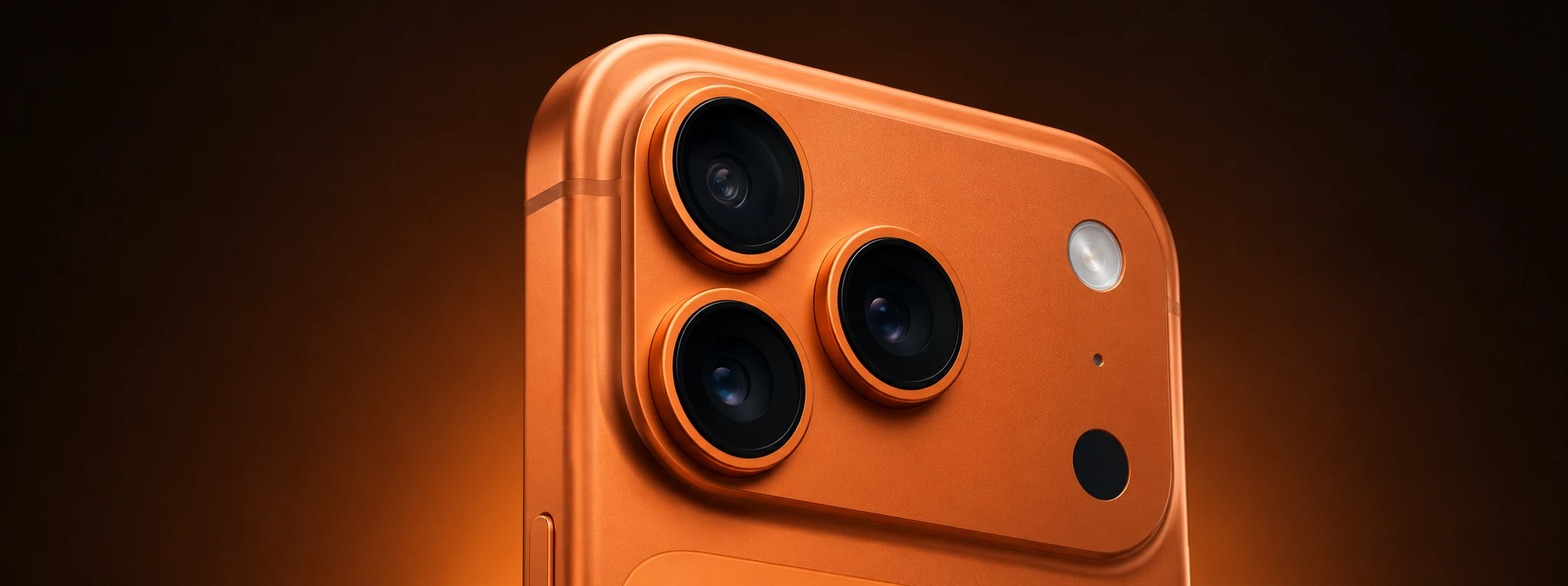
Spots on iPhone camera photos: Causes and solutions
Learn how to remove spots from iPhone camera photos and discover the causes and solutions for models from the iPhone X to the iPhone 17 Pro Max.
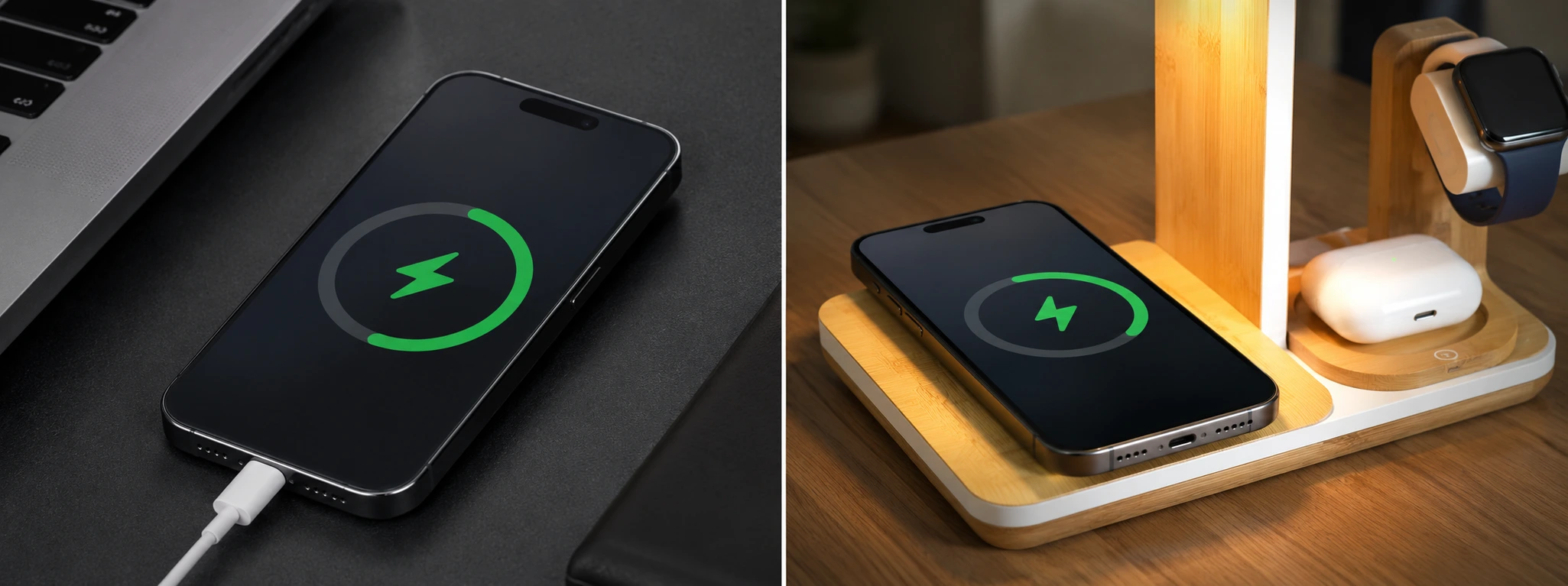
iPhone does not recognize charging cable: causes and solutions
iPhone not recognizing the charging cable? Discover common causes and effective solutions for iPhone X to iPhone 16 Pro Max.
Non-Genuine Battery Message on iPhone: Causes and Solutions
Non-original battery message on iPhone? Discover the causes, solutions, and how iServices can help with diagnosis and guaranteed repair.