








Causes of the Dark iPhone Screen Even with Maximum Brightness
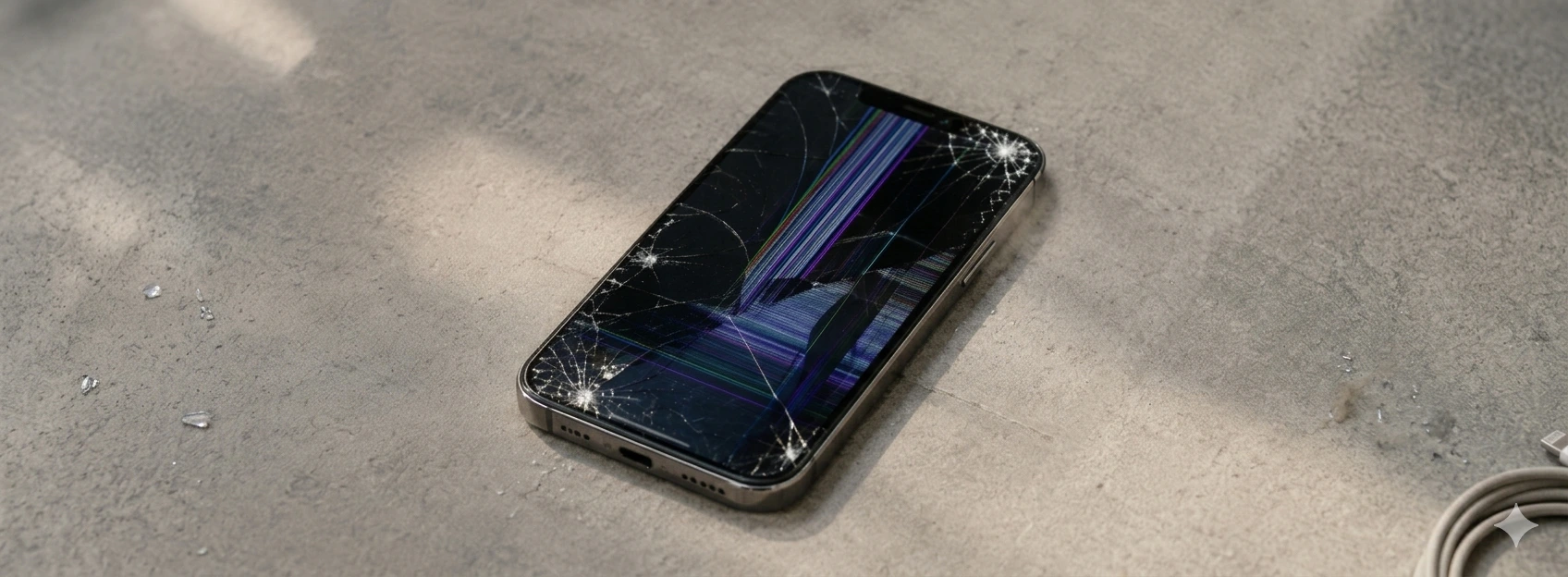
If your iPhone screen is very dark even with the brightness at maximum, you know how frustrating that can be. This problem can affect models from the iPhone X to the latest iPhone 17 Pro Max, interfering with the visual experience and daily use of your device. Fortunately, there are several possible causes for this problem, ranging from software settings to hardware failures, and solutions you can try before resorting to specialized assistance.
At iServices, with our stores in Europe, we are specialists in mobile phone repairs and have helped thousands of users solve these types of problems. In this article, we explain everything you need to know to identify the cause of the dark screen and how you can quickly resolve the situation.
Causes of a Dark iPhone Screen Even with Maximum Brightness
Automatic Brightness Adjustments Activated
The iPhone has an ambient light sensor that automatically adjusts screen brightness to optimize visibility and save battery life. If the sensor is dirty, blocked, or faulty, the screen may remain dark even if the brightness is manually set to maximum.
Low Light Mode or Night Mode Activated
Some iOS features, such as Low Light Mode (Night Shift) or Dark Mode, alter the colors and screen brightness to reduce eye strain, which can give the impression that the screen is too dark.
Software Issues or iOS Update
Operating system failures, bugs, or an unsuccessful update can affect screen brightness control. This can result in abnormally low brightness, regardless of the chosen settings.
Screen Hardware Defect or Brightness Sensor
Damage to the screen, the device connection cable, or the luminosity sensor can cause brightness failures. These issues generally require technical intervention to replace damaged components.
Table of Solutions
| Cause | Recommended Solution | Complexity |
|---|---|---|
| Automatic Brightness Adjustments Activated | Clean sensor, disable automatic brightness | Low |
| Low Light Mode or Night Mode Activated | Disable modes in iOS settings | Low |
| Software Issues or iOS Update | Restart iPhone, update or restore iOS | Medium |
| Screen Hardware Defect or Brightness Sensor | Diagnosis and repair at iServices | High |
Step-by-Step Solutions
Clean Sensor and Disable Automatic Brightness
- 1. Locate the ambient light sensor, usually near the front camera.
- 2. Carefully clean the sensor with a soft, dry cloth, without applying liquids.
- 3. Go to “Settings” > “Display & Brightness”.
- 4. Disable the “Auto-Brightness” option.
- 5. Manually adjust the brightness to the maximum level and check if the problem persists.
Disable Low Light Mode and Night Mode
- 1. Open “Settings” on your iPhone.
- 2. Select “Display & Brightness”.
- 3. Check if “Low Light Mode” (Night Shift) is enabled and disable it.
- 4. Confirm that “Dark Mode” is disabled, if you prefer a brighter screen.
- 5. Test the screen to see if the brightness has improved.
Restart, Update or Restore iOS
- 1. Restart your iPhone by pressing and holding the side button and one of the volume buttons until the 'slide to power off' appears.
- 2. Turn off and then turn on the device again.
- 3. Check for an iOS update in “Settings” > “General” > “Software Update”.
- 4. If the problem persists, back up your data and restore your iPhone via iTunes or Finder on your computer.
Diagnosis and Repair at iServices
- 1. If none of the previous solutions work, the problem may be hardware-related.
- 2. Visit an iServices store in Portugal for a professional diagnosis.
- 3. Our specialized technicians will identify the problem and recommend the best solution, which may include replacing the screen or sensor.
- 4. Count on warranty, express deliveries, and dedicated technical assistance.
Why is my iPhone's brightness very low even at maximum?
Brightness can be conditioned by automatic settings, power saving modes, software issues, or failures in the luminosity sensor. It's important to check these causes to identify the root of the problem.
How can I disable auto-brightness on iPhone?
Go to “Settings” > “Display & Brightness” and turn off the “Auto-Brightness” option. This allows you to manually control screen brightness without sensor interference.
What to do if the ambient light sensor is dirty?
Carefully clean the sensor with a soft, dry cloth. Avoid using liquids that could damage the components. If the problem persists, the sensor may be faulty.
Is it worth restoring the iPhone to solve brightness problems?
Yes, restoring your iPhone can eliminate software errors that affect brightness. However, you should back up your data first as this process erases all device data.
Need Professional Help? iServices Is Here for You
If your iPhone screen remains very dark even with maximum brightness, don't hesitate to seek professional help. At iServices, we have a vast network of stores across Portugal, where our qualified technicians perform precise diagnostics and fast repairs with a warranty. We guarantee express deliveries so you can get back to using your iPhone worry-free.
Visit our website to find the nearest store or book your diagnosis now. Trust iServices' experience to solve any problem with your mobile phone with quality and confidence. We are here for you!
Recommended Products
View all
 36 Months
 36 Months
€19.95
36 Months
Other Articles
See more
iPhone Storage Full and Not Responding? Expert Tips
Is your iPhone storage full and unresponsive? Discover how to fix it on models from iPhone X to 17 Pro Max.
iPhone Asks for a Passcode I Don't Remember: What to Do?
Forgot your iPhone passcode? Discover how to regain access to your device quickly with tips from iServices.

iPhone 17 Pro Max vs iPhone 18 Pro Max, what are the differences?
iPhone 17 Pro Max vs iPhone 18 Pro Max: discover the differences between the two Apple smartphones in terms of performance, cameras, battery, design and which one you should buy.